IPTV Player M3U Setup Guide – Stream in Minutes | 2026
IPTV player M3U setup: paste one URL into TiviMate, IPTV Smarters Pro or VLC and your full channel list loads in under 5 minutes on any device.
Updated: August 14, 2026.
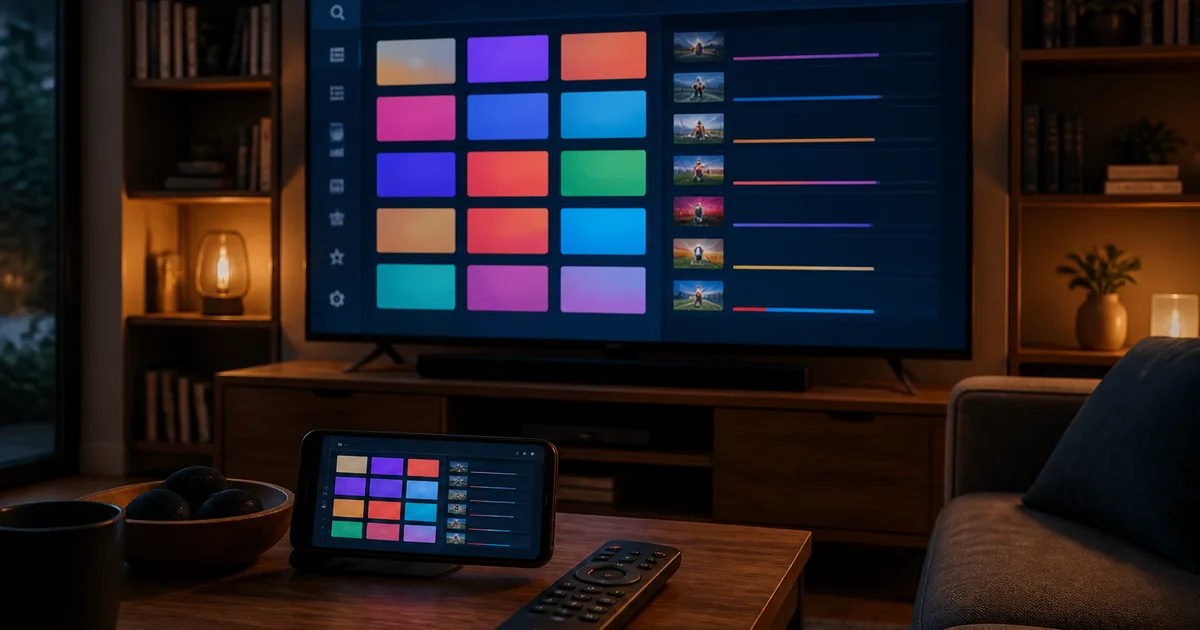
An iptv player m3u setup is the fastest and most flexible way to watch live television on any screen. You receive a single M3U URL from your provider, open any compatible IPTV player — TiviMate, IPTV Smarters Pro, VLC, GSE Smart IPTV, or dozens of others — paste the link, and your full channel list loads in under a minute. The entire process takes five minutes or less. Hungary IPTV delivers 48,000+ live channels and VOD titles across M1, M2, M3, RTL Klub, TV2, Sport1, Premier League, and far more, all in FHD 1080p, 4K UHD, and 8K where available, to any device you already own.
M3U playlists have become the universal currency of IPTV streaming because they work across every platform without proprietary hardware or locked-in software. Whether you own an Android TV box, a Fire TV Stick, an Apple TV, a Samsung Tizen or LG webOS smart TV, an iPhone, an iPad, a Windows PC, or a MAG box, the same M3U URL powers all of them. You are never tied to a single app or a single device — unlike traditional operators such as Magenta TV (Telekom), DIGI, or Vodafone TV, whose content is only available inside their own closed applications and specific hardware.
This guide covers every major IPTV player and every major device in 2026. Read it once and you will know exactly how to load your M3U playlist on any screen in your home.
TL;DR – Quick Summary
- An M3U URL is a universal playlist link that works in TiviMate, IPTV Smarters Pro, GSE Smart IPTV, VLC, Smart IPTV, OTT Navigator, Perfect Player, Kodi, and hundreds of other apps across Android, iOS, Windows, macOS, and Smart TV platforms.
- Setup takes five minutes or less: subscribe, receive your M3U URL via WhatsApp, open your IPTV player, paste the URL, and start watching.
- Hungary IPTV provides 48,000+ channels and VOD titles — including Hungarian national channels (M1, M2, M3, M4 Sport, M5, Duna TV), entertainment channels (RTL Klub, TV2, ATV, HírTV, Spektrum), and premium sports (NB I, Premier League, La Liga, Bajnokok Ligája, Serie A) — in FHD 1080p, 4K UHD, and 8K.
- You need at least 10 Mbps for FHD streams and 25 Mbps for 4K; a VPN is optional but can help with congestion on some networks.
- Plans start at €12 per month with no long-term contract, no auto-renewal, and a free trial available on request.
Table of Contents
- What Is an IPTV Player M3U?
- Why Use an M3U Playlist for IPTV?
- How to Load an M3U URL into Your IPTV Player
- Best IPTV Players for M3U – Full Comparison
- Troubleshooting – When Your M3U Playlist Won't Load
- Pros and Cons
- Frequently Asked Questions
- Conclusion
Try Hungary IPTV before paying anything
What Is an IPTV Player M3U?
An IPTV player M3U is any media player application that can read an M3U playlist file or URL and use it to stream live television channels and on-demand video over the internet. M3U — short for MP3 URL — is a plain-text format that originated as a way to organise audio playlists, but it became the standard for IPTV channel lists because it is simple, open, and universally supported.
The M3U Format Explained
An M3U playlist is a plain-text file where each channel is described by two lines: a metadata line beginning with #EXTINF (which carries the channel name, logo URL, group category, and EPG ID), followed by the stream URL on the next line. Here is a simplified example:
#EXTM3U
#EXTINF:-1 tvg-id="M1.hu" tvg-name="M1" tvg-logo="https://example.com/m1.png" group-title="Hungarian",M1
https://stream.example.com/m1/index.m3u8
#EXTINF:-1 tvg-id="RTL.hu" tvg-name="RTL Klub" tvg-logo="https://example.com/rtl.png" group-title="Hungarian",RTL Klub
https://stream.example.com/rtl/index.m3u8
A modern IPTV provider's M3U playlist may contain tens of thousands of these channel entries, each pointing to a live or on-demand stream delivered over the internet using the HLS (HTTP Live Streaming) or MPEG-TS (MPEG Transport Stream) protocol.
M3U vs M3U8 – What Is the Difference?
The terms are often used interchangeably, but there is a technical distinction. An M3U file traditionally stores stream URLs in a list. An M3U8 file is the same format but encoded in UTF-8 — the international standard for character encoding — which makes it compatible with non-Latin channel names (Hungarian, Arabic, Cyrillic, and so on). In IPTV practice, when a channel list uses HLS delivery, the individual stream segments are referenced inside a .m3u8 manifest file. When your IPTV player requests your playlist URL, it typically receives an M3U8 response regardless of the file extension. The end result for you is identical: a full channel list loads inside your player. If you want to open the file up and understand its structure, our guide to the IPTV M3U8 playlist format explains the #EXTINF tags, how to edit channel names safely, and how to validate the file.
M3U vs Xtream Codes API
Xtream Codes API is an alternative connection method offered by many IPTV providers alongside M3U. Instead of a single long playlist URL, you receive three credentials — a server URL, a username, and a password — which your IPTV player uses to query the server directly. Xtream Codes typically enables faster channel switching, more reliable EPG data, catch-up TV, and VOD browsing with poster artwork inside apps that support it (TiviMate, IPTV Smarters Pro, OTT Navigator). M3U URLs, however, work in a far wider range of players including VLC, Kodi, Perfect Player, and even basic network media players — making M3U the more universally compatible choice.
Hungary IPTV supports both methods. You can use your M3U URL immediately in any player, or switch to Xtream Codes API credentials in supported apps for a richer experience.
Closed Systems vs Open M3U
Unlike most guides that focus on a single app, this guide covers the full landscape — because the choice of connection method matters as much as the choice of player. To understand why M3U is so valuable, it helps to contrast it with what traditional pay-TV operators offer.
Magenta TV (Telekom), DIGI, Vodafone TV, Yettel, and Antenna Hungária all provide legitimate television services in Hungary — but each one locks you into its own proprietary application, its own hardware recommendation, and often its own set-top box. You cannot take a Magenta TV subscription and watch it on an Nvidia Shield using TiviMate, or on a MAG box in another country. The content and the delivery system are tightly coupled.
M3U-based IPTV breaks that coupling. Your M3U URL is a credential that belongs to you. It works in TiviMate on your Fire TV Stick at home, in GSE Smart IPTV on your iPhone while travelling, and in VLC on your laptop. One subscription, one URL, unlimited device flexibility. For Hungarians living in Europe, Canada, or the USA, this portability is not just convenient — it is transformative.
For a deeper orientation to IPTV streaming, the complete beginner's guide to IPTV setup is an excellent starting point.
Why Use an M3U Playlist for IPTV?
M3U playlists are the most widely supported, most flexible, and easiest-to-configure method for receiving IPTV content. Across every device category, from Smart TVs to smartphones to desktop computers, M3U is the common denominator — and using it comes with significant practical advantages over any proprietary closed system.
Universal Compatibility
Every major IPTV player published in 2026 supports M3U URLs as a first-class input method. TiviMate, IPTV Smarters Pro, GSE Smart IPTV, Smart IPTV, IBO Player Pro, Perfect Player, OTT Navigator, Kodi, VLC — all of them can receive an M3U URL and build a full channel interface from it within seconds. No other single format has this reach. If you own multiple devices — say, a Fire TV Stick in the living room, an iPad in the bedroom, and a Windows laptop for travel — one M3U URL covers all three without any additional configuration.
Fast, Frictionless Setup
Setting up an M3U-based IPTV player requires no technical knowledge. You copy a URL, paste it into your chosen app, and press save. The entire process is covered in detail in the next section, but the point is: there is no installation of codecs, no configuration of network settings, no pairing of hardware. The Hungary IPTV streaming service delivers your M3U URL via WhatsApp within minutes of subscription activation — and from that moment, setup on any device takes under five minutes.
Platform Independence
M3U playlists give you genuine platform independence. You are not tied to Android, iOS, Windows, or any other ecosystem. If you buy a new TV next year, you do not need to change your subscription or contact your provider — you simply enter the same M3U URL in the new TV's IPTV app, and your channel list appears. This kind of flexibility is impossible with Magenta TV, DIGI, or Vodafone TV, where changing device often means changing plan or renting new hardware.
EU Portability
For Hungarians travelling or living in other EU countries, the EU Portability Regulation 2017/1128 guarantees that legitimate online content subscriptions can be accessed across EU member states. M3U-based IPTV, delivered over the open internet, is inherently compatible with this cross-border usage model. You do not need to configure region-specific settings or bypass geographic restrictions when using your subscription within the EU.
A Channel Library That Rivals Cable
A quality M3U playlist from Hungary IPTV carries 48,000+ channels and VOD titles. That includes every major Hungarian channel — M1, M2, M3, M4 Sport, M5, Duna TV, RTL Klub, TV2, ATV, HírTV, Spektrum, Sport1, Sport2 — plus MTVA archives accessible via Mediaklikk. Sports coverage spans the NB I Hungarian football league, Premier League, La Liga, Bajnokok Ligája (Champions League), and Serie A. And because the content is delivered in FHD 1080p, 4K UHD, and 8K (where the source broadcast supports it), the picture quality matches or exceeds what you get from a cable or satellite subscription.
No Contract, No Auto-Renewal
Hungary IPTV operates with no long-term contracts and no automatic renewal. You choose the plan that suits you — one month at €12, three months at €27, six months at €40 (saving 44%), or twelve months at €60 (saving 58%) — and you are in control. Cancel any time. Renew when you want. This is fundamentally different from the annual contracts that DIGI and Magenta TV typically require. See IPTV subscription plans and pricing for the full breakdown.
Activate your trial in just a few minutes
How to Load an M3U URL into Your IPTV Player
Loading an M3U URL into your chosen IPTV player is a straightforward process that follows the same basic pattern on every platform: open the app, find the playlist or account setup menu, select the M3U URL input method, paste your URL, and save. Channels load automatically within 30 to 90 seconds depending on playlist size and your internet speed. The steps below cover the eight most popular setups in detail.
Step 1 – Get Your M3U URL
Before you can configure any IPTV player, you need a valid M3U URL from a provider. With Hungary IPTV, the process is simple: subscribe to any plan, and your M3U playlist URL — along with optional Xtream Codes API credentials if you prefer that method — is delivered to you via WhatsApp, usually within minutes of payment confirmation. Keep this URL secure. It is your personal credential and grants access to your subscription. Do not share it publicly or post it on social media. If you have not yet subscribed, you can request a free trial to test the service before committing to a plan.
Step 2 – TiviMate (Android TV / Fire TV Stick)
TiviMate is the most popular M3U-compatible IPTV player for Android TV and Amazon Fire TV Stick, and for good reason — it offers the most polished interface, the most reliable EPG, and the best performance at 4K and FHD. To load your M3U URL in TiviMate: open the app and tap Add Playlist on the welcome screen (or go to Settings → Playlists → Add Playlist if you already have one configured). Select M3U Playlist, then Enter URL. Paste your M3U URL into the field and tap Next. TiviMate will download the playlist and automatically parse channels into groups. EPG data loads in the background. For the full walkthrough including EPG setup and category configuration, read the IPTV Smarters Pro full setup guide which covers the broader app ecosystem.
Step 3 – IPTV Smarters Pro (Android / iOS / Windows)
IPTV Smarters Pro is the most cross-platform M3U player available in 2026, running on Android phones and tablets, iPhone, iPad, Windows PC, and Android TV. Open IPTV Smarters Pro and tap Add New User. On the login screen, select Load your Playlist or File/URL. In the Playlist URL field, paste your M3U URL. Give the playlist a name (e.g., "Hungary IPTV"), then tap Add User. The channel list downloads and organises itself into Live TV, Movies, and Series categories within 30 to 60 seconds. The IPTV Smarters Player setup walkthrough covers advanced features including parental controls, catch-up configuration, and multi-screen playback.
Step 4 – GSE Smart IPTV (iPhone / iPad / Apple TV)
GSE Smart IPTV is the leading M3U player for Apple devices, available on iPhone, iPad, and Apple TV. Open the app and navigate to Remote Playlists in the left-hand menu. Tap the + button in the top-right corner and select Add M3U URL. Enter a name for the playlist, paste your M3U URL into the URL field, and tap Add (or Save). The app fetches the playlist and organises channels under Live TV by group category. On Apple TV, the same steps apply via the tvOS interface. GSE Smart IPTV also supports EPG via XMLTV URL — your Hungary IPTV credentials include EPG details for this configuration.
Step 5 – Smart IPTV (Samsung Tizen / LG webOS)
Smart IPTV is the most widely used M3U player for Samsung smart TVs (Tizen) and LG smart TVs (webOS) because it installs directly from each TV's native app store. The setup process differs slightly from mobile apps: install Smart IPTV from the Samsung App Store or LG Content Store, then launch it. The app displays your TV's MAC address on screen. On a phone or computer, open a browser and go to siptv.eu. Enter your TV's MAC address, then paste your M3U URL in the playlist field and click Upload. Return to your TV, press the Reload button in the Smart IPTV app (or restart it), and your full channel list appears. A one-time licence fee applies after a trial period.
Step 6 – Amazon Fire TV Stick
The Fire TV Stick is one of the most popular IPTV devices in 2026 because it is inexpensive, portable, and runs a full Android-based OS. The easiest approach on Fire Stick is to install IPTV Smarters Pro directly from the Amazon Appstore (search "IPTV Smarters" — no sideloading required). Once installed, open the app, tap Add New User, select Load your Playlist or File/URL, paste your M3U URL, name the playlist, and tap Add User. You can also install TiviMate on a Fire Stick by sideloading the APK via the Downloader app — this gives you TiviMate's superior interface on the same hardware. For a broader overview of device options, see best devices for IPTV streaming.
Step 7 – VLC Media Player (Windows / macOS / Linux)
VLC is the most widely installed media player in the world and supports M3U playlists natively on Windows, macOS, and Linux. It is not a dedicated IPTV player — it lacks EPG, catch-up, and channel grouping — but it is an excellent option for quickly testing an M3U URL or watching a single channel. Open VLC and go to Media → Open Network Stream (keyboard shortcut: Ctrl+N on Windows, Cmd+N on macOS). In the Network URL field, paste your M3U URL and click Play. VLC fetches the playlist and displays all channels in a flat list in the playlist panel. Double-click any channel to tune in. For regular IPTV use, a dedicated player like TiviMate or IPTV Smarters Pro provides a far better experience than VLC.
Step 8 – Apple TV (GSE Smart IPTV / tvOS)
Apple TV running tvOS is one of the most reliable IPTV streaming devices available, with excellent H.265/HEVC hardware decoding for 4K HDR10 content. The recommended M3U player for Apple TV is GSE Smart IPTV, available in the Apple TV App Store. Download and install it, then open the app. On the home screen, select Playlists, then tap Add and choose M3U URL. Enter a playlist name, paste your M3U URL, and tap Save. Channels load and appear organised by group under Live TV. Navigation is handled via the Siri Remote. For detailed navigation tips once your channels are loaded, the IPTV remote control navigation guide covers Apple TV, Fire Stick, and Android TV remotes.
Best IPTV Players for M3U – Full Comparison
The best IPTV player for M3U depends almost entirely on which device you are using. On Android and Fire Stick, TiviMate leads the field. On Apple devices, GSE Smart IPTV is the clear choice. On Samsung and LG Smart TVs, Smart IPTV or the built-in browser approach via IBO Player Pro covers most use cases. On desktop, VLC handles quick tests while dedicated players like IPTV Smarters Pro offer the full experience. The table below gives a structured overview across all major players.
| Player | Best Platform | M3U Support | EPG | Cost | Recommended For |
|---|---|---|---|---|---|
| TiviMate | Android TV, Fire Stick | Full | Excellent (7-day) | Free / Premium | Power users, cord-cutters |
| IPTV Smarters Pro | Android, iOS, Windows, Android TV | Full | Good | Free | Multi-device households |
| GSE Smart IPTV | iPhone, iPad, Apple TV | Full | Very good | Free / one-time fee | Apple ecosystem users |
| Smart IPTV | Samsung Tizen, LG webOS | Full | Good | One-time fee | Smart TV owners |
| IBO Player Pro | Android, Smart TV | Full | Basic | Free | Beginners, budget setup |
| Perfect Player | Android | Full | Good | Free | Android fans wanting Kodi-like UI |
| OTT Navigator | Android, Android TV | Full | Excellent | Free / paid premium | Advanced Android users |
| VLC Media Player | Windows, macOS, Linux | Full | None | Free | Quick tests, desktop fallback |
| Kodi (PVR IPTV Simple) | All platforms | Full | Good (with add-on) | Free | Tinkerers, home theatre setups |
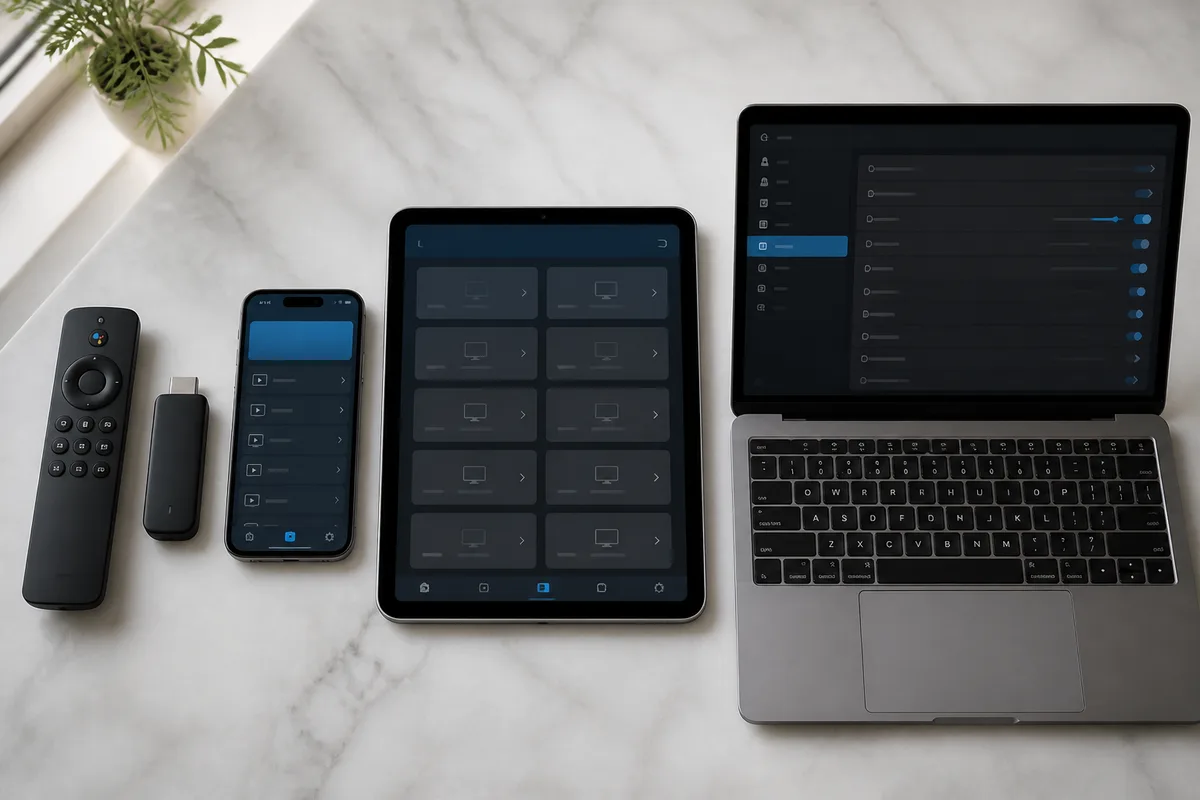
Android and Fire TV Stick: TiviMate Wins
For Android TV boxes and Amazon Fire TV Stick, TiviMate is the undisputed leader in 2026. Its grid-style programme guide, hardware-accelerated H.264 and H.265/HEVC decoding, cloud playlist backup, and multi-screen picture-in-picture mode make it feel like a professional broadcast receiver. The free version is fully functional; the Premium upgrade (approximately €5 per year) adds multi-screen viewing, recording, and parental controls. OTT Navigator and Perfect Player are solid alternatives for users who want a different interface, and they also support M3U fully. For Fire Stick specifically, IPTV Smarters Pro from the Amazon Appstore requires zero sideloading, making it the path of least resistance for first-time users.
Apple Devices: GSE Smart IPTV is the Standard
On iPhone, iPad, and Apple TV, GSE Smart IPTV has been the reference M3U player for several years. It handles XMLTV EPG imports, M3U8 streams, multi-bitrate switching, and full-screen 4K playback on Apple TV 4K with HDR10 support. The interface is clean and straightforward, and the app is updated regularly to remain compatible with the latest tvOS and iOS releases. IPTV Smarters Pro also has an iOS version that handles M3U URLs, giving you a second option with a more traditional IPTV-app feel. See best IPTV players compared for 2026 for an in-depth feature comparison between these two on iOS.
Smart TVs: Smart IPTV for Samsung and LG
Samsung Tizen and LG webOS TVs have their own curated app stores, which limits which IPTV players are available natively. Smart IPTV is the most established option on both platforms, available directly from each store. IBO Player Pro is another option — it is free and handles M3U input with a user-friendly setup. The IBO Player Pro installation guide covers both Samsung and LG installation step by step. For Chromecast and Nvidia Shield users, Android TV players apply, with TiviMate again taking the top spot on both platforms.
Desktop: VLC for Quick Tests, Smarters for Full Use
On Windows, macOS, and Linux desktop computers, VLC's M3U support makes it the fastest way to verify that a playlist URL is working — paste and play, no account setup required. For day-to-day IPTV use on desktop, IPTV Smarters Pro's Windows version provides a proper channel guide with EPG, group filtering, and on-demand browsing. Kodi with the PVR IPTV Simple Client add-on is favoured by enthusiasts who want full home-theatre integration and the flexibility to install additional Kodi add-ons alongside their IPTV setup.
Chat with our 24/7 support team
Troubleshooting – When Your M3U Playlist Won't Load
M3U playlist loading fails for a small number of predictable reasons. Identifying which one applies to your situation takes less than a minute, and every one of them has a straightforward fix. The section below covers the five most common failure modes with their causes and solutions.
Problem 1: "URL Not Found" or "Invalid URL" Error
Cause: The M3U URL was entered incorrectly — a missing character, an extra space, or a line break copied from a message app.
Fix: Do not type the URL by hand. Copy it directly from the WhatsApp message or email in which it was delivered, and paste it into the player's URL field. On mobile, tap and hold the URL, select Copy All, then paste. On desktop, use Ctrl+C / Cmd+C to copy, then Ctrl+V / Cmd+V to paste. Make sure the URL begins with http:// or https:// and ends without any trailing spaces. If the URL includes a port number (e.g., :8080), ensure that is included too.
Problem 2: Playlist Loads But Channels Won't Play
Cause: Your internet connection is too slow for the stream quality being requested, or the stream URL within the playlist is using a protocol (MPEG-TS) that your player is not configured to handle correctly.
Fix: Test your connection speed. You need at least 10 Mbps for stable FHD 1080p streams and at least 25 Mbps for 4K UHD. If your speed is adequate, go into your player's settings and enable hardware video decoding (sometimes called "hardware acceleration" or "HW decoder"). This offloads H.264 and H.265/HEVC decoding to your device's GPU, preventing CPU bottlenecks on high-bitrate 4K streams. In TiviMate, this is under Settings → Player → Video Decoder. In IPTV Smarters Pro, it is under Settings → Player Settings.
Problem 3: EPG (Programme Guide) Shows No Data
Cause: The EPG source URL is missing, incorrect, or has not yet loaded. EPG data is fetched separately from the channel list itself and can take several minutes to download and index on first load.
Fix: Check your player's EPG settings. Your Hungary IPTV subscription includes EPG data — the XMLTV EPG URL is included in your welcome message alongside your M3U URL. In TiviMate, go to Settings → EPG Sources → Add Source → XMLTV URL, and paste the EPG URL there. Allow five to ten minutes for the first load. In IPTV Smarters Pro, EPG often loads automatically from embedded tvg-id tags in the M3U file — if it does not appear, restart the app after the initial playlist load. Check the IPTV FAQ page for additional EPG troubleshooting tips.
Problem 4: Buffering and Freezing During Playback
Cause: Network congestion, Wi-Fi interference, or an undersized device processor struggling with high-bitrate content. A VPN with a congested server can also introduce significant latency and packet loss.
Fix: First, switch from Wi-Fi to a wired Ethernet connection if possible — this alone eliminates the majority of buffering issues on Smart TVs and Android TV boxes. If you must use Wi-Fi, move the device closer to the router or use a Wi-Fi extender on the same 5 GHz band. In your IPTV player, increase the buffer size: in TiviMate this is under Settings → Player → Buffer Size; try 10 MB or higher. If you are using a VPN, test without it — switch to a different VPN server, or disable the VPN entirely to determine whether it is the source of the latency.
Problem 5: Subscription Expired or Credentials Rejected
Cause: Your subscription period has ended or the M3U URL has been reset (which can happen if you request a new URL or if there is a server-side update to the playlist structure).
Fix: Log into your account or contact Hungary IPTV support via WhatsApp to confirm your subscription status. If your subscription has lapsed, renewing is immediate — your M3U URL is restored as soon as payment is confirmed. If the URL has changed, the support team will send you the updated URL via WhatsApp. Hungary IPTV operates 24/7 customer support precisely to resolve these situations quickly, usually within minutes.
Pros and Cons
Pros
- Universal device compatibility. A single M3U URL works on Android TV, Fire TV Stick, Apple TV, Samsung Tizen, LG webOS, iPhone, iPad, Windows, macOS, Linux, MAG box, and Nvidia Shield — often simultaneously if your subscription allows multiple connections. You buy one subscription and cover every screen in your home.
- Minimal setup time. From receiving your M3U URL to watching M1 or RTL Klub live on your TV takes under five minutes. There is no driver installation, no hardware pairing, no activation code to submit via a separate website. Paste, save, watch.
- Complete channel and VOD library. Hungary IPTV's M3U playlist includes 48,000+ channels and VOD titles spanning Hungarian public broadcasting (MTVA, Mediaklikk), commercial entertainment, news, and premium sports — NB I, Premier League, La Liga, Bajnokok Ligája, and Serie A all covered.
- Full HD, 4K, and 8K quality with modern codecs. Streams are delivered in H.264 for broad compatibility and H.265/HEVC for efficient 4K and 8K delivery. On supported devices and players, HDR10 metadata is passed through for compatible displays. The visual quality is indistinguishable from a cable or satellite broadcast at the same resolution.
- Flexible, commitment-free pricing. Plans run from one month to twelve months with no auto-renewal, no long-term contract, and a free trial on request. You pay for exactly what you use, and you stop when you want.
Cons
- EPG setup requires an extra step. Unlike Xtream Codes API — where EPG is often delivered automatically — M3U playlists sometimes require manually adding a separate XMLTV EPG URL in your player's settings. This is a one-time configuration that takes two minutes, but it is an extra step that new users occasionally miss.
- Player quality varies significantly. VLC and basic M3U players provide no EPG, no channel grouping, and no catch-up — they are functional but limited. Getting the best M3U experience requires installing a dedicated IPTV player like TiviMate or IPTV Smarters Pro and spending a few minutes configuring it properly. The learning curve is gentle, but it exists.
- Internet dependency is absolute. Unlike a satellite dish or a cable box, IPTV over M3U requires a consistently reliable internet connection. A slow or unstable connection produces buffering, pixelation, or dropped streams. Minimum 10 Mbps for FHD and 25 Mbps for 4K are firm requirements — not suggestions.
- Playlist size can slow initial load. A playlist containing 48,000+ entries takes longer to download and parse than a small local channel list. On older or lower-powered devices — such as a first-generation Fire Stick — the first playlist load can take 30 to 90 seconds. Subsequent loads are faster because the player caches the channel list locally.
Subscribe and start streaming in 5 minutes
Frequently Asked Questions
What is IPTV?
IPTV stands for Internet Protocol Television — live television and on-demand video delivered over the internet rather than through a traditional cable, satellite, or aerial signal. Instead of receiving a broadcast signal via a physical cable or dish, your IPTV player downloads a stream from a server over your home broadband connection. The channel content is identical to what you would see on traditional TV; only the delivery method changes. IPTV allows you to watch on any internet-connected device — Smart TVs, phones, tablets, laptops, streaming sticks — without needing a set-top box supplied by a broadcaster.
How does IPTV work?
When you open an IPTV player and load your M3U URL, the player fetches the playlist from the provider's server. The playlist contains a list of channel names and their corresponding stream URLs. When you select a channel, the player sends a request to the stream URL, which points to a CDN (Content Delivery Network) edge server. The server responds by streaming the live broadcast as a sequence of small video segments — typically using HLS (HTTP Live Streaming) with MPEG-TS container format. Your player buffers a few seconds of content, then begins decoding and displaying the video using H.264 or H.265/HEVC hardware decoding. The EPG data (from an XMLTV source) provides the programme guide overlay.
What do I need for IPTV?
You need four things: a valid IPTV subscription with an M3U URL, a compatible device (Android TV box, Fire TV Stick, Apple TV, Smart TV, phone, tablet, or PC), a dedicated IPTV player app (TiviMate, IPTV Smarters Pro, GSE Smart IPTV, or any other M3U-compatible player), and a reliable internet connection of at least 10 Mbps for FHD or 25 Mbps for 4K streams. A wired Ethernet connection is preferable to Wi-Fi for stability, though Wi-Fi works well on 5 GHz networks with strong signal. You do not need any specialised hardware beyond devices you likely already own.
Is IPTV legal?
IPTV technology itself is entirely legal — it is simply a method of delivering video over the internet, the same technology used by Netflix, YouTube, and Disney+. The legality depends on the content being streamed and the licensing held by the provider. Hungary IPTV operates within applicable regulations and serves customers in Hungary, Europe, Canada, and the USA. Within the EU, the EU Portability Regulation 2017/1128 supports cross-border access to legitimately subscribed online content services. If you have questions about content licensing or regional availability for specific channels, the team is available via WhatsApp to clarify. Hungary IPTV also operates in compliance with GDPR for all customer data handling. The NMHH (National Media and Infocommunications Authority) is the relevant regulatory body in Hungary for media service matters.
What is the difference between M3U and Xtream Codes API?
M3U is an open playlist format: a single URL that your player downloads to get the full channel list. It works in virtually every IPTV player ever made, including VLC, Kodi, and basic media players. Xtream Codes API is a structured server interface: you connect using a username, password, and server address, and the player queries the server in real time. Xtream Codes typically enables faster channel switching, richer EPG with artwork, catch-up TV browsing, and better VOD integration in apps like TiviMate and IPTV Smarters Pro. M3U is more universally compatible; Xtream Codes delivers a better experience on players that fully support it. Hungary IPTV provides both options — you can use whichever suits your preferred player.
Which is the best IPTV player for M3U?
The best M3U IPTV player depends on your device. On Android TV and Amazon Fire TV Stick, TiviMate Premium is the top choice for its interface quality and EPG reliability. On iPhone, iPad, and Apple TV, GSE Smart IPTV leads with strong M3U8 and HLS support. On Samsung Tizen and LG webOS Smart TVs, Smart IPTV or IBO Player Pro are the most practical options available from the native app store. On Windows and macOS desktops, IPTV Smarters Pro provides a full IPTV experience; VLC is better for quick URL testing. OTT Navigator and Perfect Player are strong alternatives on Android for users who want a different visual style. The [Hungary IPTV streaming service](https://hungaryiptv.net/en) works seamlessly with all of these players.
Why won't my M3U playlist load?
The five most common causes are: an incorrectly copied URL (always copy-paste, never type manually), an expired or suspended subscription, a network connection that is too slow or unstable, an incorrect EPG URL entered separately from the M3U URL, or a player that needs updating to its latest version. Start by confirming your subscription is active via WhatsApp support. Then verify the URL by opening it in a desktop browser — a valid M3U URL will either display text or trigger a file download rather than showing an error page. If the subscription is active and the URL is correct, check your internet speed and update your IPTV player app. Hungary IPTV's 24/7 WhatsApp support team resolves the majority of loading issues within minutes.
How do I get an M3U URL from Hungary IPTV?
Getting your M3U URL from Hungary IPTV is straightforward. Choose your preferred subscription plan — from one month at €12 up to twelve months at €60 — complete the subscription process, and your M3U playlist URL is delivered via WhatsApp within minutes of activation. If you want to test the service before purchasing, a free trial is available on request — contact the team via WhatsApp to arrange it. Once you have your URL, you can follow the steps in this guide to load it into any IPTV player on any device. The team is also available to walk you through setup live on WhatsApp if you prefer guided assistance.
Conclusion
Setting up an iptv player m3u connection is the simplest, most flexible, and most compatible way to access live television in 2026. One URL. Every player. Every device. Whether you are watching M4 Sport on your Samsung TV in Budapest, following the Premier League on your Fire TV Stick in London, or keeping up with Duna TV on your iPad in Toronto, your Hungary IPTV M3U playlist travels with you and works identically on every screen.
The setup process takes five minutes. The channel library — 48,000+ titles in FHD, 4K, and 8K — rivals any cable or satellite package available in Hungary. The pricing is transparent, contract-free, and significantly more affordable than traditional providers. And when something does not work as expected, 24/7 WhatsApp support resolves issues in minutes, not days.
If you are ready to replace your cable subscription or add a streaming layer that covers everything a traditional package misses, view our current subscription plans and choose the option that fits your budget. Your M3U URL will be in your WhatsApp within minutes.
The Hungary IPTV Team has been helping customers in Hungary, Europe, Canada and the USA enjoy seamless IPTV streaming since 2022. Our support team is available 24/7 on WhatsApp for setup, troubleshooting, and subscription questions.