Getting Started With IPTV: Beginner Setup in 10 Minutes
Getting started with IPTV takes under 10 minutes: pick a plan, install a free app, enter your credentials and watch 48,000+ channels on any device.
Getting started with IPTV is easier than most people expect. If you have a decent internet connection and a compatible device — which you almost certainly already own — you can go from zero to watching live TV in under ten minutes. This guide walks you through the entire process: what IPTV is, what you need, how to set it up, and how to get the best experience from day one.
Whether you are completely new to streaming or you have just signed up for an IPTV Hungary subscription and are not sure what to do next, this is the guide for you.
Quick summary:
- Setup takes under 10 minutes: choose a plan, install a free IPTV app, enter your credentials, and your channel list loads automatically.
- Minimum speeds: 5 Mbps for SD, 15 Mbps for FHD and 25 Mbps for 4K — a wired ethernet connection is always more stable than Wi-Fi.
- Best apps per device: TiviMate on Android TV, IPTV Smarters on Fire Stick, Smart IPTV (SIPTV) on Samsung and LG Smart TVs.
- A Hungary IPTV plan includes 48,000+ channels — Hungarian channels like M1, M4 Sport, RTL, TV2 and Duna plus international sports.
- Credentials arrive via WhatsApp within minutes: an Xtream Codes login (server URL, username, password) or an M3U playlist URL.
Table of contents
- What Is IPTV?
- What You Need Before You Start
- Step 1 — Choose and Subscribe to a Plan
- Step 2 — Install an IPTV App
- Step 3 — Add Your Subscription Credentials
- Device-Specific Setup Walkthroughs
- What Channels Can You Watch?
- Tips for the Best IPTV Experience
- Common Beginner Mistakes to Avoid
- Troubleshooting: the most common IPTV setup problems and fixes
- Frequently Asked Questions
- Getting Started with IPTV Hungary — Summary
What Is IPTV?
IPTV stands for Internet Protocol Television. It is a method of delivering live television channels and on-demand video content over the internet, rather than through a traditional cable or satellite connection.
When you watch cable TV, the signal travels through a dedicated cable or satellite dish to your home. With IPTV, the same television content is delivered as data packets over your existing internet connection — the same connection you use to browse websites, stream YouTube, or make video calls.
The practical result is significant: you do not need a satellite dish, a cable contract, or a technician to visit your home. You install an app on a device you already own, enter your subscription credentials, and your full channel list loads instantly.
IPTV gives you access to thousands of channels — in Hungary, that means local channels like M1, M2, M4 Sport, RTL, TV2 and Duna alongside international sports, movies, news and entertainment from around the world. A quality IPTV Hungary subscription includes 48,000+ channels in HD, FHD and 4K quality.
Under the bonnet, the technology is simple: channels are delivered as HLS streams (the same protocol YouTube and Netflix use for live video), compressed with the H.264 codec for FHD channels and the more efficient H.265/HEVC for 4K. Your app talks to the provider's server either through the Xtream Codes API — a login made up of a server URL, username and password — or through an M3U playlist, which is essentially a text file listing every channel's stream address. Every setup step in this guide is one of those two methods in practice.
Try Hungary IPTV before paying anything
What You Need Before You Start
You only need three things to get started with IPTV:
1. A Stable Internet Connection
IPTV streams video data in real time. A slow or unstable connection causes buffering — the most common complaint from new IPTV users, and one that is entirely avoidable with the right setup.
Minimum speeds:
- SD quality (Standard Definition): 5 Mbps
- HD quality (720p): 10 Mbps
- FHD quality (1080p): 15 Mbps
- 4K quality: 25 Mbps
If you can watch Netflix or YouTube without buffering, your connection is almost certainly fast enough for IPTV. Most Hungarian home broadband packages — from Telekom, Vodafone, or Digi — easily exceed these requirements.
One important tip: a wired ethernet connection is always more stable than Wi-Fi. If your Smart TV or streaming device has an ethernet port, use it. The improvement in stability — especially for live sports — is immediately noticeable.
2. A Compatible Device
IPTV works on almost any screen you already own. Here are the most common options:
- Smart TV (Samsung, LG, Sony, Philips) — install an IPTV app from the TV's built-in app store
- Android TV box (Nvidia Shield, Mecool, others) — full access to Google Play Store and top-tier IPTV apps
- Amazon Fire Stick or Fire TV — affordable and widely available, excellent for IPTV
- Android phone or tablet — watch anywhere, any time
- iPhone or iPad — iOS apps available for IPTV streaming
- Windows or Mac computer — use a web player or desktop app
You do not need to buy new hardware. Start with whatever device you already have at home. If you want guidance on which device gives the best IPTV experience, read our best devices for IPTV streaming guide. If you are new to IPTV and want to understand how it works first, our What Is IPTV – Complete Guide explains the technology from the ground up.
3. An IPTV Subscription
You need credentials from an IPTV provider — this is a username, password, and server URL (or an M3U playlist link) that your chosen IPTV app uses to connect to the streaming servers.
Visit our IPTV Hungary subscription plans to choose the right plan. We offer monthly, 3-month, 6-month and yearly plans. All plans include the same full channel library — 48,000+ channels including all Hungarian channels, international sports, movies and more.
After payment, your credentials are sent via WhatsApp within minutes. There is no waiting for a technician, no engineer visit, no hardware in the post. If your subscription includes an M3U playlist URL, our complete guide to loading M3U playlists into any IPTV player walks through the setup on every major platform — from TiviMate on Fire Stick to GSE Smart IPTV on Apple TV. If you receive a .m3u8 link and want to understand what is inside it, our explainer on the IPTV M3U8 playlist format covers how to open, edit, and validate the file.
Step 1 — Choose and Subscribe to a Plan
Head to the IPTV Hungary pricing page linked above and choose the plan that fits your needs.
Our plans:
- 1 Month — perfect for trying the service
- 3 Months — good value for regular viewers
- 6 Months — significant savings
- 1 Year — best value, deepest discount
All plans include the same features: 48,000+ channels, 4K/FHD/HD quality, Hungarian channels, international sports, EPG (electronic programme guide), and 24/7 WhatsApp support.
Once you select a plan, send us a WhatsApp message. Our team responds immediately. Payment is simple, and your credentials arrive within minutes of confirmation.
Step 2 — Install an IPTV App
Next, you need an application on your device that can play IPTV streams. These apps are free to download (the IPTV subscription you purchase separately is what gives you the channels).
Here are the best apps for each device type:
Smart TVs (Samsung Tizen & LG webOS)
- Smart IPTV (SIPTV) — available in both the Samsung and LG app stores. Simple to configure, one-time activation fee of approximately €5.49 after a 7-day free trial. See our IPTV Smarters Pro setup guide for full setup instructions.
- SS IPTV — free app available on LG Smart TVs. Clean interface, easy to configure.
Android TV and Google TV
- TiviMate — widely considered the best IPTV app for Android TV. Excellent EPG, smooth performance, great interface.
- IPTV Smarters Pro — full-featured, supports M3U and Xtream Codes login, very popular.
- IBO Player Pro — simple and reliable, great for beginners.
Amazon Fire Stick and Fire TV
- IPTV Smarters — available directly from the Amazon Appstore.
- TiviMate — available via sideloading for the best Fire Stick IPTV experience.
Android Phones and Tablets
- IPTV Smarters — available on Google Play.
- GSE Smart IPTV — flexible and feature-rich.
iPhone and iPad
- IPTV Smarters — available on the App Store.
- GSE Smart IPTV — available on iOS.
Do not worry about choosing the "wrong" app. They all perform the same core function: connect your subscription credentials to a streaming server and display your channel list. You can always try a different app later.
Activate your trial in just a few minutes
Step 3 — Add Your Subscription Credentials
Open the IPTV app you installed and look for an option like Add Playlist, Add Subscription, or Login with Xtream Codes.
You will enter one of the following, depending on what your provider sent:
Option A — Xtream Codes Login (most common)
- Server URL (e.g., http://example-server.com:8080)
- Username
- Password
Option B — M3U Playlist URL
- A single URL that contains your full channel list
Enter the details exactly as provided — copy and paste where possible to avoid typos. Save the profile, and the app will begin loading your channels.
This typically takes 10–30 seconds. Once complete, you will see your full channel list organised by category. Select any channel and start watching.
Device-Specific Setup Walkthroughs
The three steps above are the same on every platform, but the buttons you press differ. Here is the exact route on the five most common devices — each takes 5–10 minutes from a standing start.
Amazon Fire Stick (Fire OS)
- From the home screen, open the search (magnifying glass) and type "IPTV Smarters"
- Select the app, press Get/Download, and open it once installed
- Choose Login with Xtream Codes API, then enter the server URL, username and password from your WhatsApp message
- Wait 10–30 seconds while the channels and EPG load — done
If you prefer TiviMate, install the Downloader app first, enable "Apps from unknown sources" for it under Settings → My Fire TV → Developer Options, and sideload TiviMate's APK. Note that Fire Sticks shipped from late 2025 with Vega OS block this route.
Samsung Smart TV (Tizen 5.0+)
- Open Apps from the home ribbon and search for "Smart IPTV"
- Install and open it — the app displays your TV's MAC address on screen
- On a phone or computer, go to siptv.app, open the My List page, enter that MAC address and your M3U playlist URL, then press Send
- Restart the app on the TV; your channels appear within a minute
Smart IPTV has a 7-day free trial, then a one-time activation fee of approximately €5.49 — there is no ongoing app subscription.
LG Smart TV (webOS 4.0+)
- Open the LG Content Store, search for "SS IPTV" and install it
- In the app, open Settings → Content → External playlists and add your M3U URL directly on the TV, or use the on-screen device code with SS IPTV's web panel
- Save, return to the main screen, and your channel groups load automatically
Android TV / Google TV (Sony, Philips, Chromecast, Shield)
- Install TiviMate from Google Play
- On first launch choose the Xtream Codes login and enter your server URL, username and password
- TiviMate downloads the channel list and EPG on its own; set your favourite groups when prompted
iPhone and iPad
- Install IPTV Smarters from the App Store
- Log in with the same Xtream Codes details
- To watch on a TV, use AirPlay or a Lightning/USB-C-to-HDMI adapter
What if the app isn't in my TV's app store?
This mostly affects Samsung and LG models from before 2018, and TVs in regions where an app was delisted. Tizen and webOS do not allow sideloading, so you cannot force-install anything. The realistic options: try the sibling app first (SS IPTV instead of Smart IPTV, or vice versa), and if neither exists for your model, a ~€50 Fire Stick 4K in the TV's HDMI port bypasses the TV's app store entirely — it is the standard fix we recommend daily.
What if I received an M3U link but the app asks for Xtream Codes?
Your M3U URL actually contains the same three values — look closely and you will see the server address, a username and a password inside the link. Copy those parts into the Xtream login fields, or simply message support on WhatsApp and we will send your credentials in the other format. Every subscription works with both methods.
Chat with our 24/7 support team
What Channels Can You Watch?
With a Hungary IPTV subscription, your channel list includes:
Hungarian channels:
- M1, M2, M3, M4 Sport, M5
- RTL, TV2, Duna TV, Duna World
- RTL Klub, Cool TV, Film+, Spektrum, National Geographic Hungary
- ATV, HírTV, and more
International sports:
- Premier League, La Liga, Bundesliga, Serie A
- UEFA Champions League and Europa League
- Formula 1 and MotoGP
- NBA, NFL, MLB
- Tennis: Wimbledon, Roland Garros, US Open
Movies and entertainment:
- HBO, Sky Cinema, Canal+
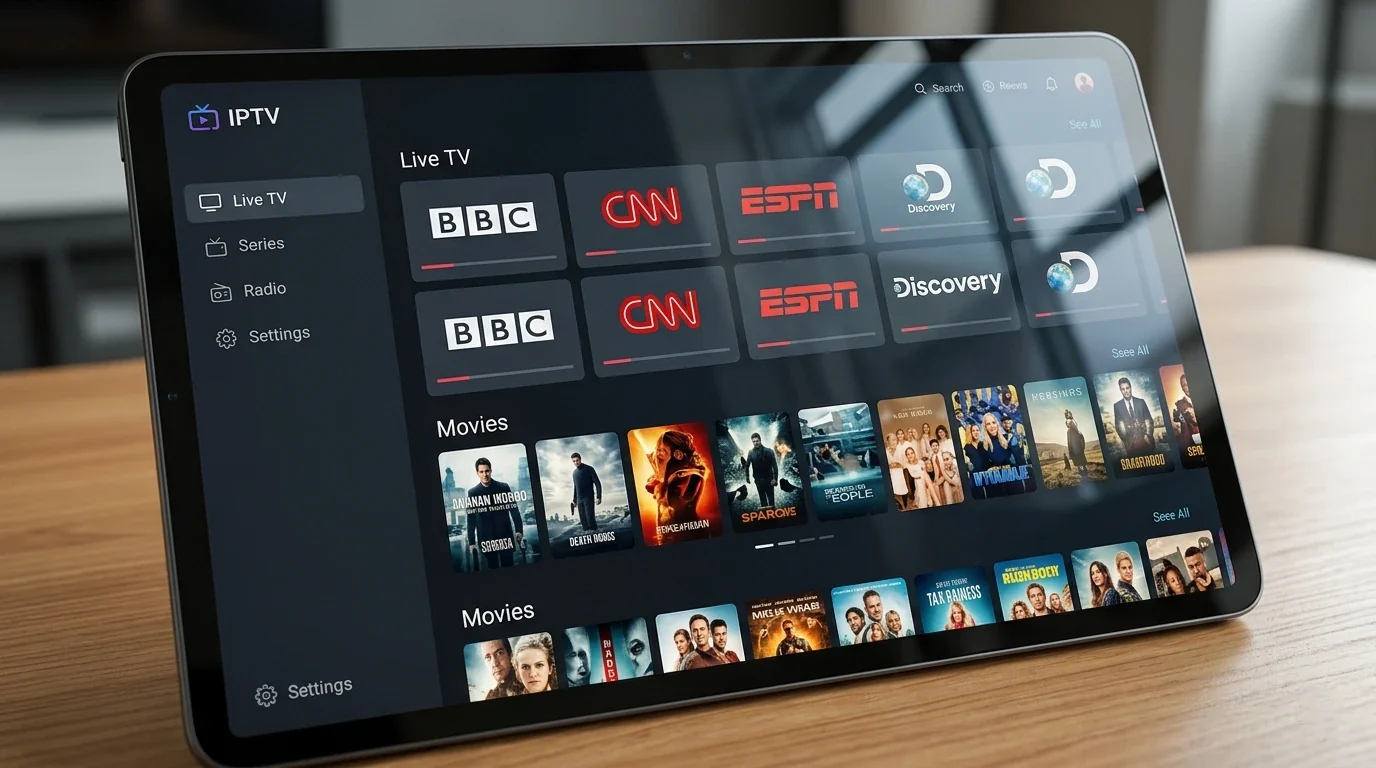
- BBC, CNN, Euronews, Al Jazeera
- Discovery, National Geographic, History Channel
- Disney Channel, Cartoon Network, Nickelodeon
EPG (Electronic Programme Guide): All channels come with a full TV guide showing current and upcoming programmes, just like a standard TV guide.
Two related features are worth knowing about from day one. Catch-up lets you replay recently aired programmes on selected channels — look for a clock or replay icon next to the channel name in your app. And the VOD library sits alongside live TV in the same apps, with films and series organised by genre; it uses the same credentials, so there is nothing extra to configure. Neither feature covers every single channel, but on the major Hungarian and sports channels the combination effectively removes the fixed TV schedule.
Tips for the Best IPTV Experience
Getting IPTV working is straightforward. Getting it working brilliantly requires a few small adjustments.
Use a wired ethernet connection whenever possible This is the single most impactful improvement for IPTV streaming. Ethernet eliminates the latency and packet loss that causes buffering on Wi-Fi. If your TV has an ethernet port, plug it in.
Use the 5GHz Wi-Fi band if you cannot go wired Most modern routers broadcast on both 2.4GHz and 5GHz bands. The 5GHz band is faster and less congested. Always connect your streaming device to 5GHz rather than 2.4GHz.
Set stream quality appropriately Most IPTV apps let you manually select stream quality. Start with FHD or 4K. Only reduce quality if you experience buffering — do not default to SD if your connection can handle more.
Restart your router monthly Routers accumulate minor issues over time. A monthly restart clears the cache and often improves streaming performance across all devices.
Keep your app updated IPTV apps release regular updates to fix bugs and improve compatibility. Enable auto-updates or check manually every few weeks.
Contact support if you have issues Our 24/7 WhatsApp support team resolves most issues within minutes. Whether it is a credential problem, buffering, or an app configuration question, we guide you through it step by step.
Common Beginner Mistakes to Avoid
In our support conversations, the same handful of first-week mistakes come up again and again. Skip them and your first impression will match what the service can actually do.
1. Typing credentials by hand. One extra space at the end of a copied password, a capital I instead of a lowercase l, or a missing :8080 port in the server URL will each produce a login error. Copy and paste every field directly from the WhatsApp message — never retype.
2. Judging quality over weak Wi-Fi. Testing a 4K channel on a TV three rooms away from the router tells you about your Wi-Fi, not the service. Do your first test wired, or at least on the 5GHz band in the same room, before drawing conclusions.
3. Scrolling through all 48,000 channels. The full list is a library, not a menu. Spend your first ten minutes hiding country groups you will never watch and marking 20–30 favourites — every IPTV app supports this, and it transforms daily use.
4. Expecting the app itself to contain channels. IPTV Smarters, TiviMate and IBO Player Pro are empty players — the subscription provides the channels. Downloading five different apps will not change what you can watch; one app plus valid credentials is all you need.
5. Installing APKs from random websites. If you sideload, only download apps from the developer's official site. Modified "free IPTV" APKs are a well-known source of malware, and they will not add any channels to a legitimate subscription.
6. Leaving a VPN running. A VPN adds latency and often reroutes your traffic through congested servers — the most common self-inflicted cause of buffering we see. Turn it off for streaming unless you specifically need it.
7. Watching on two screens with a single-stream plan. Installing the app on several devices is fine, but a standard plan plays one stream at a time — starting a channel on your phone while the TV is running will interrupt one of them. If your household needs true simultaneous viewing, ask support about multi-connection options before it becomes a nightly frustration.
Subscribe and start streaming in 5 minutes
Troubleshooting: the most common IPTV setup problems and fixes
"I can't log in — the app says invalid credentials"
Almost always a transcription issue rather than an account issue: a trailing space from copy-paste, http typed as https, or a missing port number in the server URL. Delete the profile, re-paste all three fields exactly as received, and check the URL format matches your WhatsApp message. If it still fails, your plan may not be active yet — message support and we will verify it in minutes.
"The M3U playlist won't load at all"
First test whether the URL itself responds: open it in a browser or in VLC on a computer. If it downloads a file there but fails in the app, the app's playlist type is set wrongly — choose "M3U URL" rather than "file". If it fails everywhere, the link may have expired or been regenerated; request a fresh one from support.
"Channels loaded, but the picture buffers every evening"
Evening-only buffering is the signature of local network congestion, not server trouble: between 7 pm and 11 pm every neighbour is streaming too. Move the device to ethernet or the 5GHz band, and if only 4K channels stutter, watch the FHD versions — on most TVs the difference is smaller than you expect.
"I see a black screen with sound on some channels"
A decoder mismatch: the channel uses H.265/HEVC and your app's software decoder cannot keep up. In the app's player settings, switch the decoder from software to hardware (or try the reverse). On Smart TVs older than 2018 the hardware may not support HEVC at all — an external streaming stick fixes this permanently.
"The EPG guide is empty or shows wrong times"
The programme guide loads separately from the channel list and can take a few minutes on first launch. If it stays empty, refresh the EPG manually in the settings and confirm the EPG URL from your credentials is entered. Wrong times are almost always the time-offset setting — set it to your local time zone and the guide realigns.
"The app freezes while loading the channel list"
A 48,000-channel list with full EPG is heavy for TVs and boxes with 1 GB of RAM. Hide the channel groups you never watch, reduce EPG storage to 1–2 days, and restart the app. On older Smart TVs, the long-term fix is a Fire Stick or Android box doing the heavy lifting instead of the TV.
Frequently Asked Questions
How long does setup take?
Most users are watching live channels within 10 minutes of receiving their credentials. The setup process — installing an app and entering your details — is quick and simple.
Do I need any special hardware?
No. IPTV works on devices you already own: Smart TVs, phones, tablets, computers, and streaming sticks. The only additional hardware you might consider is a Fire Stick or Android TV box if your TV does not have a compatible app store — but even this is optional.
Can I watch on multiple devices?
Registering several devices is not the same as streaming on them at once: on Basic, simultaneous streaming is a separately activated feature, while Premium supports up to 3 simultaneous streams depending on configuration. Ask us on WhatsApp which setup fits your household.
What if channels buffer or freeze?
First check your internet speed. Then try switching from Wi-Fi to a wired ethernet connection. If the problem persists, try reducing stream quality in the app settings. If nothing helps, contact our support team — we will resolve it quickly.
Does IPTV work while travelling?
Yes. IPTV works on any internet connection anywhere in the world. Hungarian viewers in the UK, Germany, Canada, or the USA use our service identically to viewers in Budapest.
What is the difference between M3U and Xtream Codes?
Both are ways to connect your subscription to an IPTV app. Xtream Codes uses a username and password login; M3U uses a single URL containing your channel list. Both work equally well. Your credentials will include instructions on which method to use.
Can I watch IPTV over mobile data or a hotspot?
Yes — the apps work on any internet connection, including 4G and 5G. Keep the data use in mind: SD streaming consumes roughly 1 GB per hour, FHD around 2–3 GB, and 4K can exceed 7 GB per hour. On a limited data plan, select a lower stream quality in the app before a long viewing session.
Why does the app ask for a "playlist name" or "profile name"?
It is only a label for your own reference — the app can store several subscriptions and needs a way to tell them apart. Type anything you like ("Home", "Hungary TV"); it has no effect on the connection. The fields that must be exact are the server URL, the username and the password.
What happens when my subscription expires?
Nothing dramatic: channels simply stop loading and the app shows an authentication error. Your settings, favourites and app configuration stay untouched. Renew via WhatsApp and the same credentials reactivate within minutes — you will not need to set anything up again.
Can I install the app on several devices with one subscription?
Yes — install and log in on your TV, phone and tablet freely. The limit is simultaneous playback: a standard plan streams to one screen at a time, so two devices cannot both play channels at the same moment. For genuine multi-room viewing, ask us about multi-connection options.
Getting Started with IPTV Hungary — Summary
IPTV is not complicated. The learning curve is short, the setup takes minutes, and the result — access to 48,000+ channels on any screen in your home — is immediate and dramatic.
Here is the complete process in brief:
- Choose a plan — visit our IPTV Hungary plans page and select monthly, 3-month, 6-month or yearly
- Contact us on WhatsApp — our team responds immediately and processes your subscription
- Install an IPTV app — free apps available on every major device
- Enter your credentials — username, password and server URL provided after subscription
- Start watching — your full channel list loads automatically
Most subscribers are watching live channels within 10 minutes of their first message to us. If you have any questions during setup, our 24/7 support team is always available.
Ready to get started? View our IPTV Hungary subscription plans and choose the option that works for you. For more on the technology behind IPTV, see the Internet Protocol Television overview on Wikipedia.
About the author: The Hungary IPTV Team has been helping customers across Hungary, Europe, Canada and the USA enjoy seamless IPTV streaming since 2022. Our support team is available 24/7 via WhatsApp to help with setup, troubleshooting, and any questions about your subscription.