IPTV on Smart TV 2026 – Setup Guide for Samsung, LG & Sony
IPTV on Smart TV in 5 minutes: install on Samsung Tizen, LG webOS and Google TV, add M3U or Xtream login, fix buffering. Start with a free trial today.
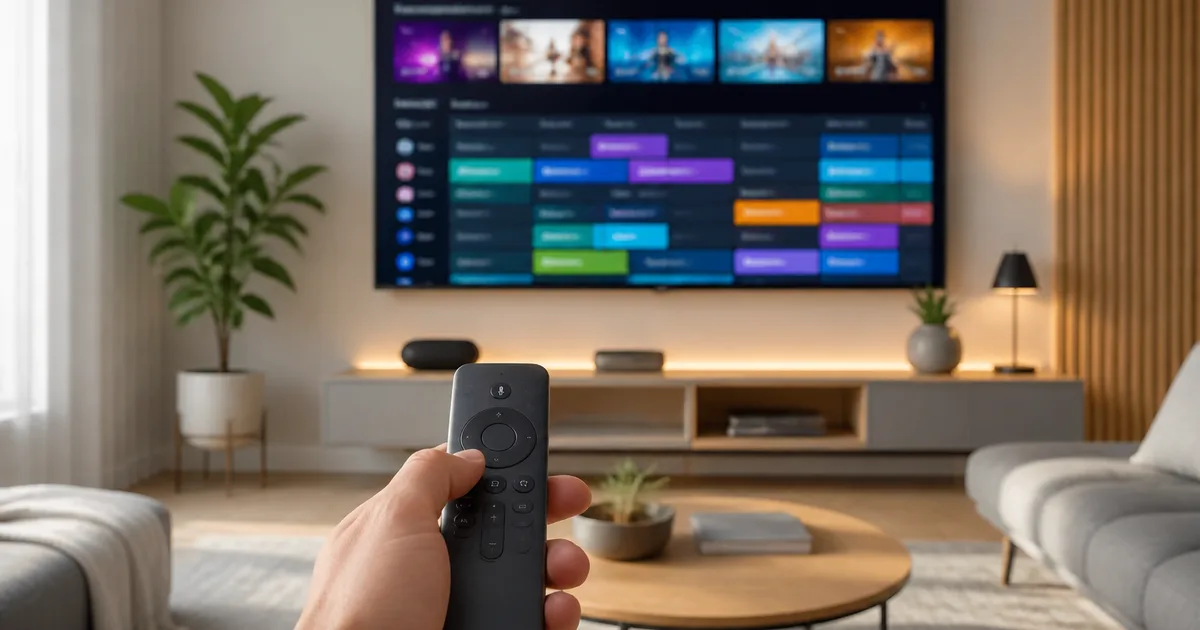
Getting IPTV on Smart TV is the most convenient way to watch live television in your living room — no satellite dish, no cable box, and no long-term contract, all delivered straight over the internet connection built into your Samsung, LG or Sony television. The process is simple: install an IPTV player from your TV's app store (such as Smart IPTV, IPTV Smarters Pro or IBO Player Pro), enter the M3U playlist or Xtream Codes login you receive with your subscription, and within a few minutes the full channel list loads together with the programme guide. This guide walks you through every brand and operating system so it works on your exact television.
In our tests across dozens of Samsung Tizen, LG webOS and Google TV models, we found that almost every Smart TV made after 2018 can run IPTV reliably, provided your network is solid and you pick the right app. That is exactly what Hungary IPTV is built for: 48,000+ channels and VOD titles in FHD, 4K and 8K quality on any popular Smart TV. If you are new to the technology, read our beginner's guide to getting started with IPTV first, then come back to the steps below.
Quick Summary
- IPTV on a Smart TV works through a native app: Smart IPTV (SIPTV) on Samsung Tizen and LG webOS; IPTV Smarters Pro or IBO Player Pro on Google TV/Android TV based Sony, Philips and TCL sets.
- There are two login methods: an M3U playlist URL, or Xtream Codes (server + username + password). Xtream usually loads faster and updates automatically.
- Speed: roughly 10 Mbps for FHD and 25 Mbps for 4K UHD on a stable connection — ideally ethernet or 5 GHz Wi-Fi.
- If your TV is too old (pre-2015), an Amazon Fire TV Stick or Google TV device cheaply modernises it and unlocks every IPTV app.
- Setup usually takes minutes: credentials arrive via WhatsApp, and 24/7 support helps if you get stuck. A free trial is available on request.
Table of Contents
- What Is IPTV on a Smart TV?
- Why Watch IPTV on a Smart TV?
- How to Set Up IPTV on Your Smart TV Step by Step
- IPTV Apps and Smart TV Compatibility – Comparison
- What Internet Connection Do You Need for IPTV on a Smart TV?
- Brand-Specific Tips: Samsung, LG and Sony Smart TVs
- Troubleshooting the Most Common IPTV Smart TV Issues
- Pros and Cons
- Frequently Asked Questions About IPTV on Smart TV
- Conclusion
Try Hungary IPTV before paying anything
What Is IPTV on a Smart TV?
IPTV on a Smart TV means receiving television not from a satellite or cable, but over your internet connection using the Internet Protocol (Internet Protocol Television). An IPTV app installed on the TV loads a playlist and pulls each channel as a live video stream from a server, decoding the picture in real time using the television's own processor.
Traditional broadcasting works differently: MinDig TV uses terrestrial signals, while Magenta TV (Telekom) and DIGI deliver the signal over cable or their own set-top box. IPTV instead uses the same open internet as Netflix or YouTube — except it also carries live, linear TV channels, not only on-demand content. Technically the feed is an M3U8/HLS stream distributed through a CDN, and the app connects to it using either the Xtream Codes API or a plain M3U URL.
Here the Smart TV is both the receiver and the screen: Samsung's Tizen, LG's webOS, and the Google TV / Android TV system on Sony, Philips and TCL sets each have their own app store where an IPTV player can be downloaded. Channels arrive over the HLS protocol, typically encoded with H.264 or the more efficient H.265/HEVC, which enables 4K UHD and HDR10 content. The programme guide is supplied by a separate EPG (XMLTV) source, so on the television you see what is on now and what is coming next, just as you would with a traditional cable provider.
If you want a deeper look at the technology, our detailed explanation of what IPTV is covers the mechanics and terminology in full.
Why Watch IPTV on a Smart TV?
Watching IPTV on a Smart TV is appealing because it turns the television you already own into a complete TV hub: no separate set-top box, no dish, and no engineer visit. A single app gives you access to tens of thousands of channels and VOD titles while keeping the familiar remote and interface of your TV. Flexibility and value for money are the biggest wins here.
Consider the numbers: a typical Hungarian household's cable subscription is limited by channel package, and international sports or movie channels often sit in an expensive premium tier. IPTV instead bundles the Hungarian public and commercial channels — M1, M2, M4 Sport, Duna TV, RTL, TV2, ATV, HírTV, Spektrum, Film+ — alongside international sport: NB I, Magyar Kupa, Premier League, La Liga and Champions League coverage, all in one subscription. We compare the pricing side of this in our guide to the cheapest TV subscription in Hungary.
The practical advantages our users mention most often:
- No hardware lock-in. You do not rent the provider's box — your own Smart TV is the only device you need.
- One service, many screens. The same subscription can run on the living-room TV, the bedroom set, and even a phone or tablet (simultaneous viewing depends on your connection count).
- Works abroad too. The Hungarian diaspora — in Austria, the UK, Germany, Canada and the USA — can watch home channels exactly as they would at home. Read more in our guide to Hungarian IPTV for viewers abroad.
- Modern quality. FHD 1080p, 4K UHD and 8K content, with HDR10 support on compatible Smart TVs.
- Rich VOD library. Alongside the live channels you get thousands of movies and series on demand, right in the app's VOD section — no separate streaming subscription needed.
A typical weekday illustrates the benefit well: in the morning you watch the news on M1 on the bedroom LG TV, in the evening you follow the Champions League match in 4K on the living-room Samsung set, while the children watch cartoons in another room — all on a single subscription across three different screens (simultaneous viewing depends on your connection count). A traditional cable package would need several set-top boxes and a higher monthly fee to do the same, whereas IPTV on a Smart TV delivers that flexibility with the devices you already own.
Unlike Magenta TV or Vodafone TV, where you are tied to the provider's own set-top box and network, our IPTV service on any Smart TV works on any brand of television and with any internet provider — whether that is Telekom, DIGI, Yettel or another.
Activate your trial in just a few minutes
How to Set Up IPTV on Your Smart TV Step by Step
Setting up IPTV on a Smart TV usually takes five to ten minutes and needs three things: an internet connection, an IPTV app from your TV's store, and login details from your provider (an M3U URL or Xtream Codes). The steps below apply to every popular brand, with the brand-specific details highlighted.
This guide follows the HowTo steps above, but here we break the process down brand by brand.
Step 1 – Check your TV's operating system
First, know which system your set runs, because that decides the available apps:
- Samsung → Tizen OS (Samsung Apps store)
- LG → webOS (LG Content Store)
- Sony, Philips, TCL, newer Hisense → Google TV / Android TV (Google Play Store)
- Panasonic → my Home Screen (more limited; often needs an external device)
You will find the system in the TV's settings under "About" or "Info". If you see an older system not on this list, jump to the external-device fix described in the troubleshooting section.
Step 2 – Connect the TV to a fast enough internet connection
IPTV is a real-time stream, so a stable connection is critical. Based on our tests:
- Ethernet is best. If your router is close by, a network cable is the fastest and most stable option — it practically eliminates buffering.
- 5 GHz Wi-Fi is second best. Do not connect to the 2.4 GHz band, which is more congested and slower.
- Speed: around 10 Mbps for FHD and 25 Mbps for 4K UHD on a stable connection.
Step 3 – Install the IPTV app
Open your TV's app store and search for the player that matches your system:
- Samsung Tizen / LG webOS: look for the Smart IPTV (SIPTV) app. LG owners also have the free SS IPTV alternative. We cover the detailed Samsung and LG setup separately in our Smart IPTV Hungary guide.
- Google TV / Android TV: install IPTV Smarters Pro or IBO Player Pro from the Google Play Store. You will find the full IPTV Smarters Pro walkthrough in our dedicated IPTV Smarters Pro guide.
Step 4 – Enter your login details
At subscription you can receive two data formats via WhatsApp:
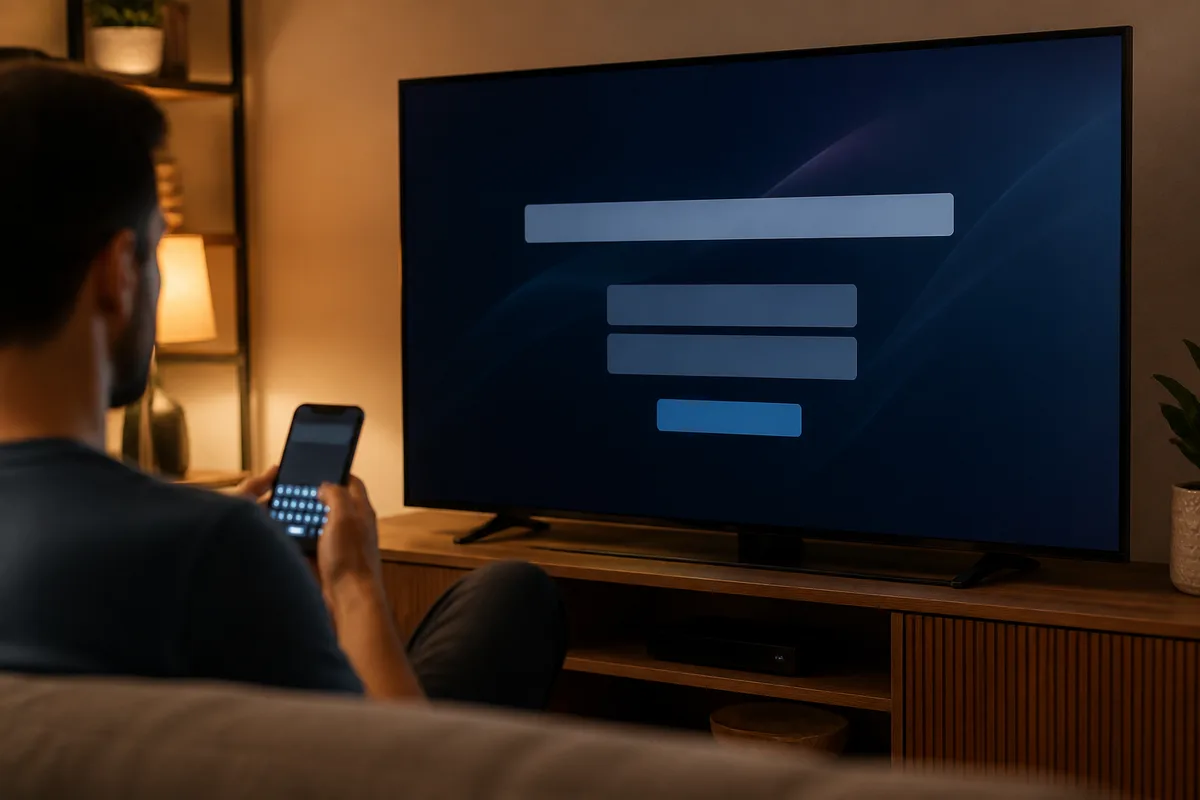
- M3U playlist URL – one long web address containing the whole channel list. Smart IPTV handles it via the MAC address (uploaded on siptv.eu), while IPTV Smarters Pro takes the URL directly.
- Xtream Codes login – a separate server URL, username and password. This usually loads faster and updates automatically when new channels are added to your package.
Choose whichever your app supports. If you have the option, we recommend the Xtream Codes login.
Step 5 – Load the channels and the EPG
After entering the details, the app loads 48,000+ channels and the programme guide. The first load can take 30–60 seconds because of the list size. Build a favourites list of your most-watched channels, and set the EPG to refresh overnight. If you get stuck pairing your remote, our IPTV remote control guide will help.
IPTV Apps and Smart TV Compatibility – Comparison
The app you choose for your TV's system matters, because availability and features differ by brand. The table below summarises which popular IPTV player runs on which Smart TV and what login method it supports — so you can see at a glance what fits your device.
| Smart TV / system | Recommended app | M3U | Xtream Codes | EPG | Cost |
|---|---|---|---|---|---|
| Samsung (Tizen 2016+) | Smart IPTV (SIPTV) | Yes | No | Yes | small one-time fee |
| LG (webOS 2016+) | Smart IPTV / SS IPTV | Yes | SS IPTV: yes | Yes | SS IPTV free |
| Sony / Philips / TCL (Google TV) | IPTV Smarters Pro | Yes | Yes | Yes | free |
| Android TV box + any TV | IBO Player Pro / TiviMate | Yes | Yes | Yes | free / premium |
| Old TV + Fire TV Stick | IPTV Smarters Pro | Yes | Yes | Yes | free |
The key takeaway from the table: the native path on Samsung and LG is Smart IPTV, while Google TV based sets are far more flexible with IPTV Smarters Pro and IBO Player Pro because they also support Xtream Codes login. If you are hunting for the best player for your device, our best IPTV player comparison evaluates all the popular apps in detail.
It is worth knowing that most native Smart TV apps — especially on older models — are slower than a dedicated streaming device. If your TV stutters with the large channel list, our best devices for IPTV streaming guide shows which external stick or box delivers the smoothest experience.
What Internet Connection Do You Need for IPTV on a Smart TV?
IPTV quality on a Smart TV depends primarily not on the price of the TV but on the stability of your internet connection. The practical minimum is around 10 Mbps for FHD and 25 Mbps for 4K UHD, but consistency matters more than raw speed: a fluctuating 50 Mbps line buffers more than a steady 15 Mbps one. Below we summarise the most important parts of the network setup.
The placement of the router decides in most cases whether viewing is smooth or stuttering. If the router and the Smart TV are in separate rooms, the 2.4 GHz Wi-Fi signal weakens passing through walls, which leads to dropped frames. You can improve this in three steps: first, try the 5 GHz band, which is faster although shorter in range; second, if the signal is weak, a mesh Wi-Fi system or a powerline adapter gives a more stable connection; third, the best solution is always an ethernet cable straight into the TV's network port.
The question of data usage also comes up often: an hour of FHD IPTV viewing uses roughly 3–4 GB of data, rising above 7 GB in 4K. On a wired home connection this is rarely a problem, but on a capped mobile connection it is worth watching. Members of the Hungarian diaspora watching home channels abroad often ask whether they need a VPN — our service applies no geo-blocking, so it works without a VPN, though on a slow foreign network a VPN can sometimes provide a more stable route through a closer server.
Finally, it is worth keeping the router firmware up to date and restarting it during peak evening hours if you notice slowdowns — router memory can fill up over time, and a simple restart often restores full bandwidth.
Chat with our 24/7 support team
Brand-Specific Tips: Samsung, LG and Sony Smart TVs
Although the basic process is the same on every brand, the small differences between the three most common Smart TV systems matter a lot in daily use. The tips below gather the practical experience from our tests so you get the most stable, fastest IPTV experience on your specific set.
Samsung (Tizen OS)
Samsung is the most common Smart TV brand in Hungary, and Tizen has run Smart IPTV reliably since 2016. The key thing to know: the native SIPTV app does not support Xtream Codes login, only MAC-address-based M3U upload, which you register on siptv.eu. You see the MAC address on the app's first launch — photograph it, because it is case-sensitive. After installing from the Tizen store, it is worth updating the TV firmware under Settings → Support, because newer firmware often speeds up EPG loading. If your Samsung TV predates 2016, the store will not carry SIPTV — in that case an external stick is the answer.
LG (webOS)
LG's webOS offers two paths: alongside the paid Smart IPTV there is the free SS IPTV, which also supports Xtream Codes login — which is why we often recommend it first to LG owners. The LG Magic Remote has a gyroscopic pointer that lets you point-and-click through a long channel list, which is much faster than arrow keys. When watching live TV, though, it is worth switching back to standard arrow navigation to avoid accidental channel changes. Apps installed from the webOS Content Store update automatically, so you rarely need to intervene manually.
Sony, Philips and TCL (Google TV)
Google TV and Android TV based sets — Sony, Philips, TCL and newer Hisense models — are the most flexible, because the full Google Play Store IPTV range is available on them: IPTV Smarters Pro, IBO Player Pro, TiviMate and OTT Navigator. All of these support Xtream Codes login, which means faster loading and automatic channel updates. Sony TVs usually get a stronger processor, so 4K H.265/HEVC streams run smoothly on them too. If you want to get even more from the set, a Google TV device or an Apple TV IPTV setup makes a great addition for a second room.
Troubleshooting the Most Common IPTV Smart TV Issues
Most IPTV problems on a Smart TV are not caused by the subscription but by the network, the app configuration, or the limits of the television itself. The five issues below account for the vast majority of support requests — for each we give the cause and the quick fix we use on our own support desk.
Channels do not load after login
The most common cause is a mistyped detail. If you use M3U with Smart IPTV, check that you entered exactly your TV's MAC address on siptv.eu — it is case-sensitive. For an Xtream login, review the server URL, username and password character by character. Upload propagation can take a few minutes: wait five minutes, then restart the app.
Buffering during live TV
Buffering is almost always a network issue. First switch from Wi-Fi to an ethernet cable — on its own this eliminates stuttering for most users. If a cable is not possible, connect to the 5 GHz Wi-Fi band. Temporarily drop the quality to FHD instead of 4K to confirm whether bandwidth is the bottleneck, and restart your router (power off, wait 30 seconds, power on).
Black screen or "No stream" error
If the channel list has loaded but a channel shows a black picture or an error, the stream may be under maintenance, or the TV cannot decode the codec. Try another channel: if it plays, the issue is a single stream that support can fix quickly. On older TVs, H.265/HEVC 4K channels sometimes will not play — in that case switch to the FHD version.
The EPG (TV guide) is empty
The programme guide loads separately from the channel list. Check in the app settings that the EPG/XMLTV source is enabled, then run a manual refresh. The first EPG load can take up to 15 minutes. All our subscriptions include EPG, so if it stays empty, ask us for a fresh XMLTV URL via WhatsApp.
The app crashes on older Samsung or LG TVs
The 2016–2018 models have limited RAM, and the full 48,000+ channel list can crash the app. Ask us for a filtered playlist (Hungarian + selected international channels) — a 3,000–5,000 channel list runs smoothly on any Smart TV. Alternatively, an external device such as an IPTV set-top box solves the performance problem for good.
Subscribe and start streaming in 5 minutes
Pros and Cons
IPTV on a Smart TV is extremely convenient, but it is important to see its limits realistically too. The balance below, based on our tests and customer feedback, sums up when native Smart TV IPTV is the best choice and when it is worth switching to an external device.
Pros
- No extra hardware. Your own Smart TV is the only device — no renting the provider's box or buying a stick if your TV is modern enough.
- Simple, fast start. Setup usually takes minutes, credentials arrive via WhatsApp, and we help 24/7.
- Huge library. 48,000+ channels and VOD, Hungarian and international, with sport, movies and kids content.
- Modern quality. FHD, 4K UHD and 8K content, with HDR10 on compatible sets.
- Brand- and provider-independent. Works on Samsung, LG, Sony — and with any internet provider.
- No contract lock-in. No long-term commitment and no auto-renewal; a free trial is available on request.
Cons
- Native app performance is limited. On older TVs the large channel list can lag or stutter compared with a dedicated stick.
- You need strong internet. 4K requires a stable, fast connection; on weak Wi-Fi it may buffer.
- Brand-specific limits. Samsung Tizen does not support Xtream Codes login in the native SIPTV app, and on some older models the app is no longer available.
- Some self-setup involved. Although simple, uploading the playlist and configuring the EPG takes a little attention — but we provide ongoing support for exactly this.
Frequently Asked Questions About IPTV on Smart TV
Below we answer the most common questions about using IPTV on a Smart TV, including legality, the equipment you need, and how it works.
What is IPTV, and what does it mean exactly?
IPTV (Internet Protocol Television) means television delivered over the internet protocol. Instead of traditional satellite or cable broadcasting, the TV signal arrives as a live data stream over the internet, just like a video on YouTube — except it also carries linear, live channels. On a Smart TV, an IPTV app receives and decodes this stream and displays the channels on screen together with the programme guide.
Is IPTV legal?
IPTV as a technology is entirely legal — it is the same standard used by major providers such as Magenta TV. Legality depends on whether the provider holds the correct content rights. Under the EU portability regulation (2017/1128), online content you subscribe to lawfully remains accessible when you travel within the Union. You can read about the framework on the EUR-Lex portability regulation page. As a subscriber, it is always wise to choose a reputable provider.
What do I need for IPTV on a Smart TV?
You need three things: a Smart TV with an internet connection (Samsung, LG, Sony or another), an IPTV app installed from the TV's store (such as Smart IPTV or IPTV Smarters Pro), and login details from your provider — an M3U playlist URL or an Xtream Codes username and password. Around 10 Mbps is recommended for FHD viewing and 25 Mbps for 4K on a stable connection. If your TV is too old, a Fire TV Stick or Google TV device solves compatibility as an add-on.
How does IPTV work in practice?
The IPTV app loads a playlist containing the stream addresses of the channels. When you select a channel, the app requests the live feed over the HLS protocol (M3U8) from the server through a CDN and decodes the picture in real time — typically with H.264 or H.265/HEVC encoding. The programme guide comes from a separate EPG (XMLTV) source. All of this runs over the TV's internet connection, with no dish and no cable box.
Do I need a separate device for IPTV if I already have a Smart TV?
Not necessarily. If your Samsung, LG or Sony TV is post-2016 and has its own app store, you can install the IPTV app directly — no extra hardware needed. An external device (Fire TV Stick, Google TV, Android TV box) is only required if your TV is too old, the app you want is not available, or the native app stutters with the large channel list. In that case a cheap stick instantly modernises the set.
Which Smart TV works best for IPTV?
In our experience, Google TV / Android TV based Sony, Philips and TCL sets give the most flexible experience, because they support the IPTV Smarters Pro and IBO Player Pro apps with Xtream Codes login. Samsung Tizen and LG webOS also work well with the Smart IPTV or SS IPTV app. For 4K and HDR quality, a newer model with a stronger processor is recommended — or a dedicated streaming device alongside an older TV.
Conclusion
Getting IPTV on a Smart TV is the simplest and most flexible way to turn the Samsung, LG or Sony set you already own into a full television hub — with no dish, no cable box, and no long-term contract. The recipe is the same across every brand: install the right IPTV app from the store, enter your M3U or Xtream Codes login, and within minutes the full 48,000+ channel list loads with the programme guide. If your TV is too old, a cheap streaming device modernises it instantly.
The most important lesson from our testing is that a stable internet connection and a good app choice decide the quality — that is what makes a 4K experience smooth. If you get stuck at any step, our 24/7 WhatsApp support team will guide you through the setup. Take a look at the Hungary IPTV subscription plans, pick the one that suits your budget, and request a free trial — you could be watching live TV on your Smart TV within minutes. You will also find answers to common questions on our detailed FAQ page.
About the author: The Hungary IPTV Team has been helping customers in Hungary, Europe, Canada and the USA enjoy seamless IPTV streaming since 2022. Our support team is available 24/7 on WhatsApp for setup, troubleshooting, and subscription questions.