IPTV Remote Control: Navigate Any App With the Remote You Own
IPTV remote control guide: navigate every IPTV app on Samsung, LG, Fire Stick and Android TV using only your existing remote. No special hardware needed.
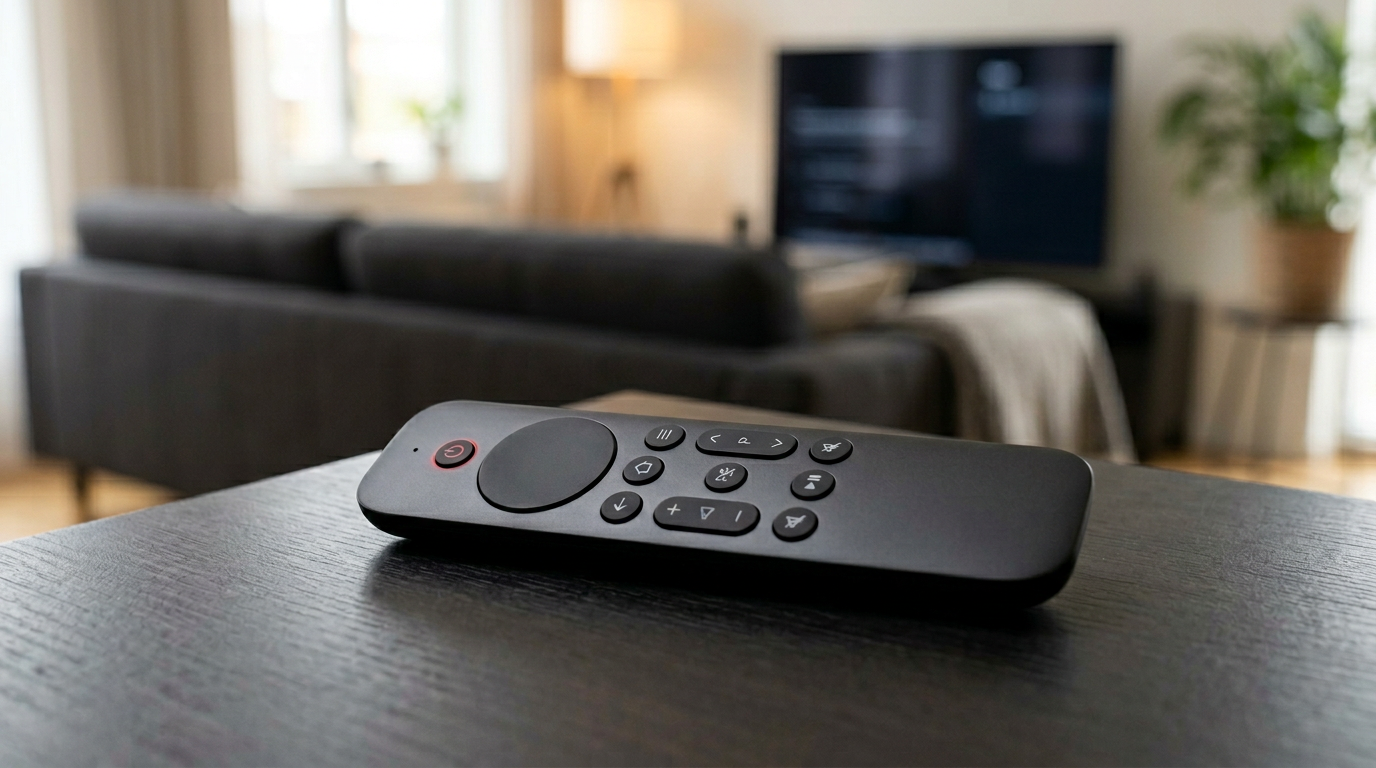
The most common question we hear from new subscribers is a simple one: "Do I need to buy a special remote for IPTV?" The answer is no — and understanding your IPTV remote control setup takes about five minutes. Every major IPTV app running on Samsung Smart TV, LG Smart TV, Amazon Fire Stick, and Android TV is built to work with the remote you already own. No adapter, no extra hardware, no Bluetooth pairing with a third-party device. Your standard TV remote is all you need.
This guide walks through exactly how remote navigation works on each major platform, which buttons do what inside the most popular IPTV apps, and how to make your day-to-day viewing faster and more comfortable. Whether you are new to IPTV Hungary or just trying to get more out of your existing subscription, this guide covers everything.
Quick summary:
- No special remote is needed: your existing Samsung, LG Magic Remote, Fire Stick or Android TV controller runs every major IPTV app.
- The directional pad, OK and Back buttons handle roughly 90% of all IPTV navigation.
- On Fire Stick and Android TV, TiviMate has the best remote navigation; on Samsung and LG Smart TVs it is Smart IPTV (SIPTV).
- The free Amazon Fire TV app turns your phone into a keyboard for the Fire Stick — credential entry drops to under 30 seconds.
- A Favourites list of your 20–30 most-watched channels puts any of them two or three button presses away.
Table of contents
- Do You Need a Special IPTV Remote Control?
- Standard Remote Button Mapping for IPTV Apps
- IPTV Remote Control on Samsung Smart TV
- IPTV Remote Control on LG Smart TV
- IPTV Remote Control on Amazon Fire Stick
- IPTV Remote Control on Android TV
- Tips for Better IPTV Remote Navigation
- Which IPTV App Has the Best Remote Navigation?
- IPTV Navigation vs Traditional Cable TV Navigation
- Getting Started with Your IPTV Subscription
- Frequently Asked Questions: IPTV Remote Control
- Conclusion
Do You Need a Special IPTV Remote Control?
No special remote is required. IPTV apps — including IPTV Smarters, Smart IPTV (SIPTV), TiviMate, IBO Player Pro, and SS IPTV — are all designed around standard TV remote navigation. Their interfaces use large, clearly highlighted menu items, logical directional movement, and consistent button mapping across the entire app.
There is no such thing as a dedicated "IPTV remote." The term simply means using your existing remote to control an IPTV app, exactly as you would use it to control any other TV application.
What actually matters is the combination of device and app. A Samsung remote navigating Smart IPTV behaves differently from a Fire Stick remote in TiviMate — not because either remote is wrong, but because the two platforms have different UI conventions. This guide covers each major combination individually.
Why IPTV Apps Are Designed for Remote Use
IPTV apps that run on televisions — as opposed to smartphone apps — are built under a design pattern called "10-foot UI." The name refers to the viewing distance between a couch and a television. Every element is oversized compared to a phone or desktop interface, items respond to directional navigation rather than touch or mouse, and focus states (the highlight showing which item is currently selected) are clearly visible from across the room.
This means that if you have ever navigated a Smart TV's built-in app store, a Netflix menu, or a YouTube TV interface with a standard remote, you already know how to navigate IPTV apps. The learning curve is close to zero.
Try Hungary IPTV before paying anything
Standard Remote Button Mapping for IPTV Apps
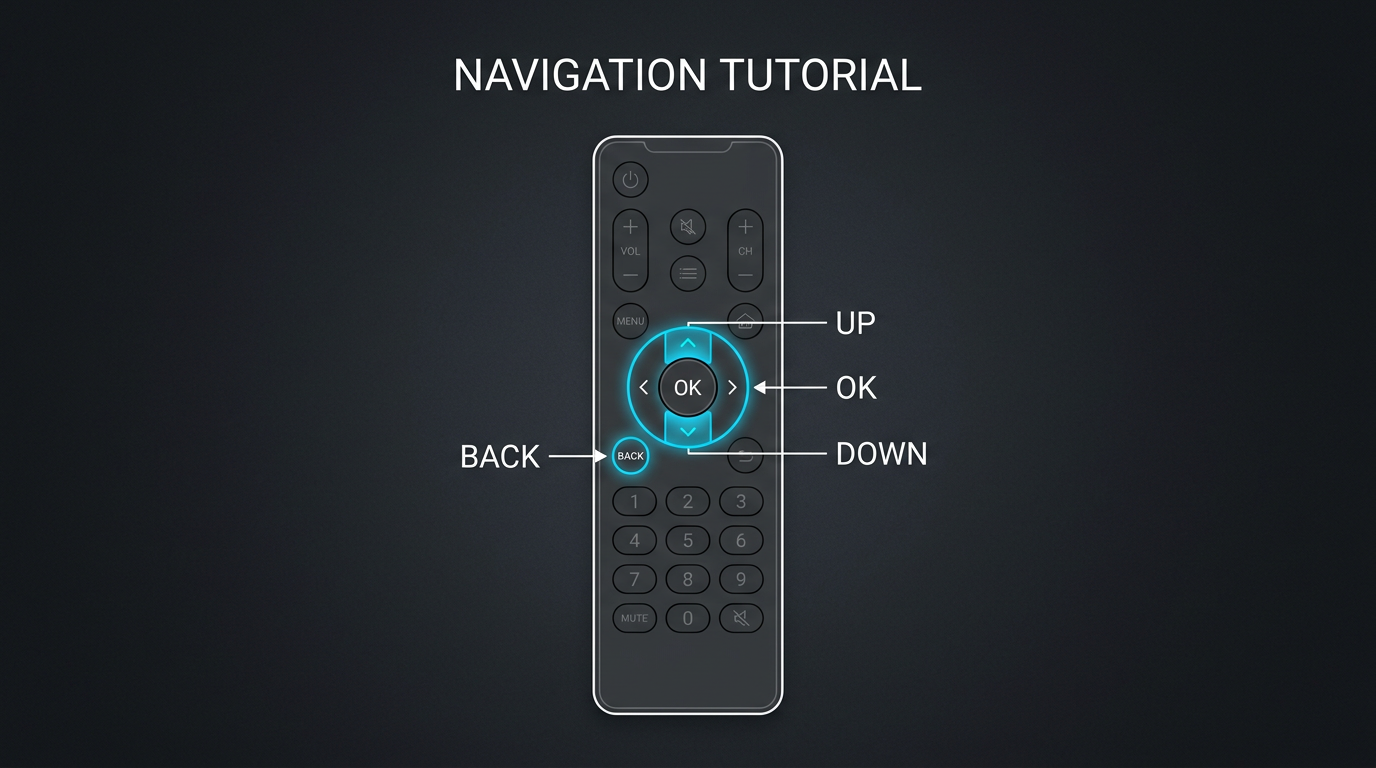
Regardless of platform, these core buttons work consistently across all major IPTV apps:
| Button | Function in IPTV apps |
|---|---|
| Arrow Up / Down | Move through channel list or menu items |
| Arrow Left / Right | Switch categories or navigate horizontal menus |
| OK / Enter / Select (centre button) | Open selected channel or menu item |
| Back / Return | Return to previous screen |
| Home | Exit app and return to TV home screen |
| Volume +/- | Adjust audio volume |
| Mute | Toggle mute |
| Info / i | Display channel info and current programme title |
| Guide / EPG | Open electronic programme guide |
| Number keys (0–9) | Jump to channel by number (app-dependent) |
| Colour buttons (Red/Green/Yellow/Blue) | App-specific shortcuts (EPG, subtitles, settings) |
| Play/Pause | Pause or resume live TV or VOD playback |
| Rewind / Fast Forward | Seek within VOD content or timeshift buffer |
In our tests across all major apps, the directional pad, OK, and Back buttons handle roughly 90% of all navigation. Learning the rest is optional and comes naturally with use.
IPTV Remote Control on Samsung Smart TV
Samsung Smart TVs run Tizen OS and ship with a slim "One Remote" — an oval-shaped controller that has replaced the older button-heavy remotes on most models since 2018. The most popular IPTV apps on Samsung are Smart IPTV (SIPTV) and IPTV Smarters.
Opening Your IPTV App on Samsung
Press the Home button (the house icon). A bar of apps appears at the bottom of the screen. Scroll left or right with the directional pad to find your IPTV app, then press OK to open it.
If the app is not visible in the default bar, scroll right to the "Apps" tile, open it, and find your IPTV app in your installed apps list.
Navigating Smart IPTV (SIPTV) on Samsung
Smart IPTV is purpose-built for Samsung and LG Smart TVs and offers the tightest remote integration of any IPTV app on these platforms.
- Arrow Up/Down navigates the channel list on the left panel
- Arrow Left/Right switches between channel categories at the top
- OK plays the highlighted channel
- Back while watching returns focus to the channel list without stopping playback
- The blue colour button opens the Electronic Programme Guide
- The red button usually opens the settings panel
- If your Samsung remote has channel Up/Down buttons, they switch channels directly during playback — identical to traditional TV channel surfing
Navigating IPTV Smarters on Samsung
- Arrow keys browse categories (Live TV, VOD, Series, Catch-up) at the top level
- OK selects a category or plays a channel
- Back returns one level
- OK pressed during playback brings up the player toolbar (pause, seek, audio track selector, subtitles, quality settings)
- Leaving the player toolbar alone for a few seconds causes it to disappear automatically
Based on customer feedback, the most common point of confusion on Samsung is accidentally pressing Back twice — once exits the channel list, a second press closes the app entirely. If this happens, simply re-open the app from your home screen; your place in the channel list is usually saved.
IPTV Remote Control on LG Smart TV
LG Smart TVs run webOS and ship with the distinctive Magic Remote — a wand-shaped controller with a built-in gyroscope that moves an on-screen cursor, similar to a computer mouse. LG users most commonly use Smart IPTV (SIPTV) or SS IPTV.
Using the LG Magic Remote with IPTV
The Magic Remote offers two navigation modes that both work in IPTV apps:
Pointer mode: Point the remote at the screen and a cursor appears. Move the remote to position the cursor over a channel or menu item, then press OK to select it. This is the fastest way to navigate large channel lists — you can jump directly to any visible item without scrolling through everything above it.
Directional mode: If you hold the remote still or press a directional button, the cursor disappears and standard Up/Down/Left/Right navigation takes over. This is closer to a traditional TV remote experience and is preferred by users who find the pointer mode imprecise.
In our tests, pointer mode is significantly faster for browsing channels, while directional mode is more comfortable for navigating settings menus where precision matters less than stability.
Opening Your IPTV App on LG
Press Home to open the webOS launcher bar at the bottom of the screen. Scroll to your IPTV app and press OK (or point and click with the cursor). If the app is not in the launcher bar, navigate to the LG Content Store and locate it in your installed apps.
The LG Magic Remote also has a voice button (microphone icon). Pressing it lets you say the name of an app to open it directly. Saying "open Smart IPTV" will launch the app without any manual navigation.
Activate your trial in just a few minutes
IPTV Remote Control on Amazon Fire Stick
The Amazon Fire Stick remote is a slim Bluetooth controller with a circular directional ring, a centre select button, Back, Home, Menu (three-line hamburger), and dedicated volume controls. The most popular IPTV apps on Fire Stick are IPTV Smarters Pro and TiviMate.
Core Fire Stick Remote Navigation in IPTV Apps
- The circular ring navigates Up/Down/Left/Right
- The centre button selects
- Back returns to the previous screen
- Home exits the app entirely and returns to the Fire TV home screen
- The hamburger menu button (three lines) opens app-specific option menus — in TiviMate this opens the main settings panel
Typing with the Fire Stick Remote
Entering your IPTV credentials (M3U URL or Xtream Codes username/password) using the Fire Stick remote's on-screen keyboard is the one genuinely inconvenient part of Fire Stick IPTV setup. The circular ring is slow for typing. If you are pasting a .m3u8 link, our guide to the IPTV M3U8 playlist format explains exactly what that URL contains and how to load it correctly.
Three solutions we recommend to customers:
-
Use the Fire TV app on your phone. The official Amazon Fire TV remote app (available for Android and iOS) turns your phone into a Bluetooth keyboard and voice input device for your Fire Stick. Type your IPTV credentials on your phone's keyboard instead of the on-screen TV keyboard — this cuts setup time from several minutes to under 30 seconds.
-
Use Alexa voice input. Fire Stick 4K and 4K Max remotes have a dedicated Alexa button. Press and hold it, say your search term or command out loud. You cannot dictate long credential strings this way, but it is useful for channel searches and app navigation once you are set up.
-
Use a Bluetooth keyboard. A compact wireless keyboard with a touchpad pairs with Fire Stick over Bluetooth and makes all text entry trivial. These are available for under €20 and are worth it if you use Fire Stick as your primary IPTV device.
Once your credentials are entered, you never need to type them again — the app remembers your login.
IPTV Remote Control on Android TV
Android TV remotes vary by manufacturer, but virtually all follow the same standard layout: a directional pad, a centre OK button, Back, Home, and usually a dedicated Google Assistant or microphone button. Devices include Nvidia Shield, Xiaomi Mi Box, Mecool boxes, Chromecast with Google TV, and built-in Android TV on Sony, TCL, and Philips televisions.
The most popular IPTV apps on Android TV are TiviMate and IPTV Smarters Pro. If you are setting up either of these for the first time, our guide to getting started with IPTV walks through the full installation and credential entry process step by step.
Navigating TiviMate on Android TV
TiviMate is widely considered the best IPTV app for remote-based navigation. Its entire interface is designed around a TV remote, and in our tests it consistently outperforms other apps for channel switching speed, EPG usability, and general responsiveness.
- Arrow keys navigate the channel list
- OK plays the highlighted channel
- Back from within a channel opens the channel list sidebar without stopping playback
- Left arrow while watching opens the channel sidebar
- Right arrow while watching opens the EPG panel directly
- OK pressed during playback brings up the player overlay (pause, seek bar, audio/subtitle track selection)
- The Menu button (if present on your remote) opens TiviMate's main settings
TiviMate also supports a Favourites system that is exceptionally well-integrated: long-press OK on any channel in the list and an option appears to add it to one or more Favourites groups. You can create multiple Favourites playlists (Sports, News, Hungarian channels, etc.) and switch between them with the Left/Right arrows at the top of the channel list.
Navigating IPTV Smarters Pro on Android TV
IPTV Smarters Pro uses a tabbed navigation layout across the top of the screen: Live TV, VOD, Series, Catch-up, and Settings. Arrow Up moves to the tab bar, Left/Right selects a tab, Arrow Down enters the content grid below.
- OK selects and plays
- Back returns one level through the tab structure
- OK during playback opens the player toolbar
For new users, IBO Player Pro is an alternative worth considering — its interface is simpler and more linear, making it easier to learn. See our IBO Player Pro setup guide for a full walkthrough of installing and using it on Android TV and Fire Stick.
Voice Control on Android TV
Press and hold the Google Assistant button (microphone icon) on your Android TV remote. You can say:
- "Open TiviMate" — launches the app directly
- "Search for BBC News" — opens search within the current app (app-dependent)
- "Turn on subtitles" — system-level command in some apps
- "Volume up" / "Mute" — system audio controls
Voice control does not replace remote navigation for channel browsing, but it is genuinely useful for opening apps quickly and for users who find the on-screen keyboard slow.
Chat with our 24/7 support team
Tips for Better IPTV Remote Navigation
These are the improvements that make the biggest difference to the day-to-day IPTV experience, based on feedback from our customer base.
Build a Favourites List First
If you are new to IPTV, the size of the channel list — 48,000+ channels in a full IPTV Hungary subscription — can feel overwhelming. The solution is Favourites. Every major IPTV app lets you long-press (or hold OK) on a channel to add it to a Favourites group. Once built, your Favourites list typically appears at the top of the channel navigation, before all other categories. You can reach your 20–30 most-watched channels in two or three button presses from any screen.
We recommend building your Favourites list within the first 15 minutes of setting up a new IPTV subscription. It transforms the navigation experience immediately.
Use the Channel Search Function
All major IPTV apps include a text search that searches across your entire channel list. Instead of scrolling through categories to find a specific channel, open search and type the channel name. Finding "M4 Sport HD" or "Sky Sports Main Event" takes three seconds with search rather than 30–60 seconds of manual browsing. On Fire Stick, use the phone app or Alexa to avoid the on-screen keyboard.
Learn Your EPG
The Electronic Programme Guide is one of the most useful features IPTV offers over traditional cable. It shows current and upcoming programmes across all channels, lets you browse by time, and in apps like TiviMate allows you to set reminders or start timeshift playback.
Spend five minutes learning how to open and navigate the EPG in your specific app. In most apps it is one or two button presses from any screen. Once you are familiar with it, you will use it constantly.
Use Channel Number Shortcuts
If your remote has number keys (0–9), most IPTV apps support direct channel number entry during playback. Press a number and a small input field appears; type the full channel number to jump directly to it. This is especially useful if you remember the channel numbers for your most-watched stations.
Consider a Mini Keyboard for Fire Stick
If you use Fire Stick as your primary IPTV device and find the on-screen keyboard frustrating even for occasional credential updates or search, a compact Bluetooth keyboard with integrated touchpad is a low-cost quality-of-life improvement. It pairs with Fire Stick in seconds and can be put away in a drawer when not needed.
Which IPTV App Has the Best Remote Navigation?
Based on our testing and customer feedback:
Best for Samsung and LG Smart TVs: Smart IPTV (SIPTV). It is purpose-built for Tizen and webOS remotes, and the pointer-based navigation on LG Magic Remote is particularly well-implemented.
Best for Fire Stick and Android TV: TiviMate. Its channel list, EPG panel, and player controls are all optimised for remote use, and it is consistently faster to navigate than any competing app on these platforms.
Best for beginners: IBO Player Pro. The simpler, more linear interface has a lower learning curve than TiviMate or IPTV Smarters Pro, making it the right choice for users who are new to IPTV or prefer a traditional TV-like experience.
Best cross-platform consistency: IPTV Smarters Pro. Available on Samsung, LG, Fire Stick, Android TV, iOS and Android phone — the interface is consistent across all platforms, which is useful if you use IPTV on multiple devices. If you are setting up IPTV on multiple devices at once, our guide to the best devices for IPTV covers the full comparison.
IPTV Navigation vs Traditional Cable TV Navigation
A concern we regularly hear from new subscribers is that IPTV will feel different or harder to use than the cable TV remote experience they are used to. In practice, the core navigation is almost identical — and IPTV offers several improvements.
| Navigation Feature | Cable TV | IPTV |
|---|---|---|
| Channel surfing | Up/Down on remote | Up/Down on remote |
| Programme guide | Guide button | Guide/EPG button |
| Channel search | Limited or unavailable | Full text search |
| Favourites | Basic, provider-limited | Fully customisable |
| Jump to channel by number | Number keys | Number keys (app-dependent) |
| VOD and catch-up | Separate provider menu | Integrated in same app |
| Multiple device access | One TV | TV, phone, tablet, laptop |
| App choice | One provider UI | Multiple apps, user's choice |
The key advantage is flexibility. With IPTV, you are not locked into whatever navigation interface your cable provider built. You choose the app, choose the layout, and can switch apps any time without changing your subscription or paying extra.
Subscribe and start streaming in 5 minutes
Getting Started with Your IPTV Subscription
If you are ready to start, setup requires three things:
- A compatible device — Samsung Smart TV, LG Smart TV, Amazon Fire Stick, Android TV box, smartphone, or tablet
- An IPTV app installed on that device
- IPTV subscription credentials (M3U URL or Xtream Codes username, password, and server URL)
Once credentials are entered, all navigation is done with your existing remote — no new hardware, no additional setup. After subscribing to IPTV Hungary, credentials are delivered via WhatsApp typically within minutes, and most customers are watching live TV within 15 minutes of subscribing.
View current plans and pricing at our pricing page. We offer monthly, quarterly, 6-month and annual plans with access to 48,000+ live channels including all major Hungarian channels, international sports packages, and a full VOD library.
Frequently Asked Questions: IPTV Remote Control
Do I need to buy a special remote to use IPTV?
No. Your existing TV remote — whether it came with a Samsung, LG, Sony, or any other Smart TV — works with all major IPTV apps without any modification. Fire Stick and Android TV remotes work equally well. There is no "IPTV remote" product you need to purchase. The IPTV apps are designed specifically to be navigated with standard TV remotes.
Why does my Samsung remote not respond inside my IPTV app?
This is usually caused by the IPTV app losing focus rather than a remote hardware issue. Press the Home button to return to the Samsung home screen, then re-open the IPTV app. If the remote works on the home screen but not inside the app, try closing the app completely (Settings > Apps > close/force stop), then reopening it. In our experience, this resolves remote responsiveness issues in roughly 80% of cases. If the problem persists, reinstalling the IPTV app usually fixes it permanently.
Can I use the LG Magic Remote cursor in IPTV apps?
Yes. The LG Magic Remote pointer works in IPTV apps that support webOS pointer mode, including Smart IPTV (SIPTV) and SS IPTV. Simply point the remote at the screen, move the cursor over the channel or menu item you want, and press OK (or click the centre button). If you prefer traditional directional navigation, hold the remote still and the cursor will disappear, reverting to standard Up/Down/Left/Right control. Both modes work simultaneously — you can switch between them at any time.
How do I type on a Fire Stick if I find the remote keyboard too slow?
The most effective solution is the free Amazon Fire TV app, available for both Android and iOS. Once installed and connected to the same Wi-Fi network as your Fire Stick, it turns your smartphone into a full keyboard for your Fire Stick. Type IPTV credentials or search terms on your phone's keyboard and they appear on the TV screen instantly. Alternatively, Fire Stick 4K and 4K Max remotes include an Alexa button — press and hold it to use voice input for searches and commands. A third option is pairing a Bluetooth mini keyboard directly with the Fire Stick, which works well for users who want a permanent solution.
Can I use voice control with IPTV apps?
Yes, on most modern devices. Samsung Smart TV remotes (2019 and later) have a built-in microphone for Bixby voice commands. LG Magic Remotes have a Google Assistant or ThinQ AI button. Fire Stick remotes have an Alexa button. Android TV remotes have a Google Assistant button. In all cases, you can use voice to open IPTV apps, navigate the device operating system, and adjust volume. Voice control within IPTV apps — such as searching for a specific channel by voice — depends on whether the individual app supports it; TiviMate and IPTV Smarters Pro both have limited voice integration on Android TV.
What do I do if my remote navigates too slowly through long channel lists?
Most IPTV apps support press-and-hold acceleration: if you hold the Up or Down arrow key instead of tapping it, the list scrolls progressively faster after about one second. This is the quickest way to move through a large channel list with a standard remote. The longer-term solution is to build a Favourites list of your 20–30 most-watched channels — with Favourites set up, you rarely need to navigate the full channel list at all. You can also use the channel search function to jump directly to any channel by name.
Conclusion
Using your existing remote with IPTV is straightforward regardless of which device or app you are on. Samsung, LG, Fire Stick, and Android TV all map the same core buttons — directional pad, OK, and Back — in consistent ways across every major IPTV app. The LG Magic Remote adds pointer navigation on top of standard directional controls, and voice-enabled remotes on all platforms reduce the need for manual navigation further.
The short version: press Up/Down to browse channels, OK to watch, Back to go back. Everything else — EPG, Favourites, search, VOD — is discoverable from there. If you are ready to experience IPTV with a full channel package, view our current IPTV Hungary subscription plans and get set up today.
About the author: The Hungary IPTV Team has been helping customers in Hungary, Europe, Canada and the USA enjoy seamless IPTV streaming since 2022. Our support team is available 24/7 on WhatsApp for setup, troubleshooting, and subscription questions.