Best IPTV Player for Windows 2026 – 6 Apps Compared
Best IPTV player for Windows 2026: MyIPTV Player and IPTV Smarters Pro lead our 6-app test — free from the Microsoft Store, streaming in 5–10 minutes.
If you are looking for the best IPTV player for Windows, the short answer is this: most Windows 10 and Windows 11 users should start with MyIPTV Player or IPTV Smarters Pro, because both are free, install straight from the Microsoft Store, and support M3U playlists and the Xtream Codes API. If you want advanced customisation or media-library integration, Kodi and VLC are the best choices. This guide compares the six best IPTV players for a Windows PC and shows you how to set each one up, step by step.
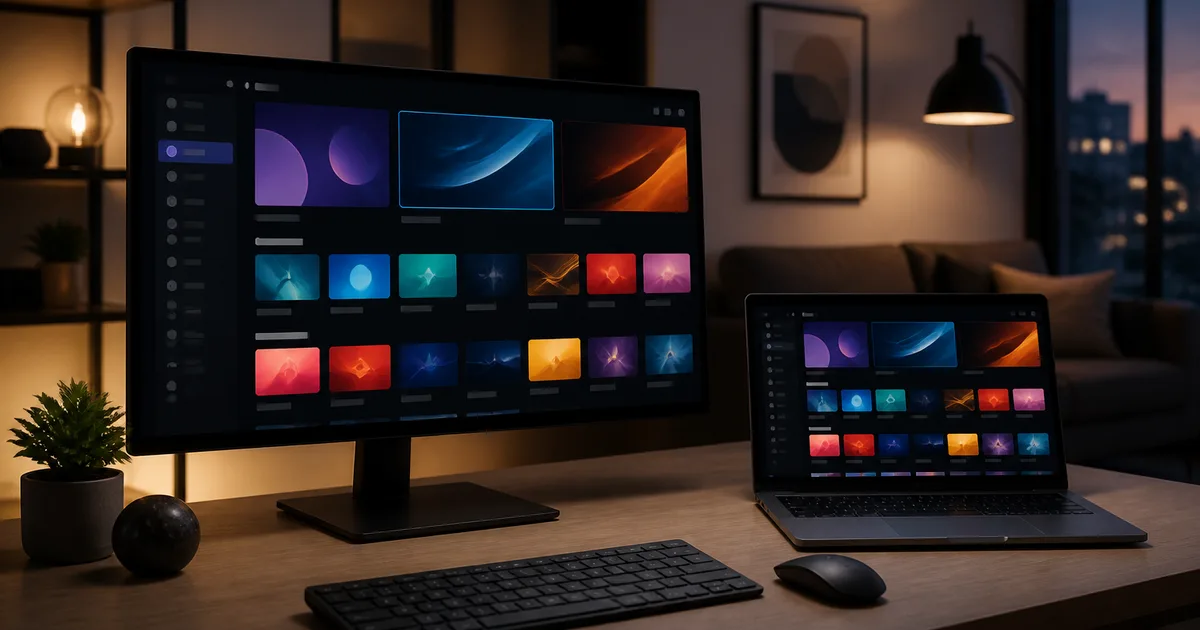
A Windows PC offers a large screen, a powerful processor and plenty of storage — making it an ideal IPTV streaming platform if you pick the right player. The catch: there is no single "official" IPTV app for Windows the way there is a default app on an Android box. The upside: that is exactly why you get to choose from several excellent players, each with a different strength. Whether you are watching a live M4 Sport match, a Duna TV news bulletin, or a 4K film from the VOD library, there is a Windows IPTV player that fits your needs perfectly.
By the end of this guide you will know exactly which is the best IPTV player for Windows for the way you watch, and you will be streaming on your PC within five to ten minutes.
Quick Summary
- Easiest start: MyIPTV Player and IPTV Smarters Pro install free from the Microsoft Store and load your M3U or Xtream Codes list in minutes.
- Most flexible: Kodi with the PVR IPTV Simple Client add-on turns your Windows PC into a full media centre with EPG and recording.
- Fastest to test: VLC Media Player opens any M3U file in under a minute, with no post-install configuration.
- Hardware 4K/HEVC: every recommended player supports GPU-based decoding (Intel Quick Sync, Nvidia NVDEC) for smooth 4K UHD playback.
- The player is free, the subscription is not: most Windows IPTV apps are free; you need a reliable IPTV service for the M3U or Xtream Codes credentials.
Table of contents
- What Is the Best IPTV Player for Windows?
- Why Choosing the Right Windows IPTV Player Matters
- How to Set Up an IPTV Player on Windows Step by Step
- The 6 Best IPTV Players for Windows: Comparison Table
- MyIPTV Player, VLC, Kodi and the Rest in Detail
- How to Watch Hungarian Channels and Sport on Windows
- Windows IPTV Optimisation: Advanced Settings That Matter
- Troubleshooting: Common Windows IPTV Problems
- Pros and Cons
- Frequently Asked Questions
- Conclusion: The Best IPTV Player for Windows for You
Try Hungary IPTV before paying anything
What Is the Best IPTV Player for Windows?
The best IPTV player for Windows is the software that reads your M3U or Xtream Codes credentials and turns them into a stable, cinema-quality live TV interface on a Windows 10 or Windows 11 PC. It handles video decoding, the EPG, buffering and channel management — bringing the quality of your service onto your screen.
It is important to understand that an IPTV player contains no channels. It is an empty frame: you add your subscription's M3U link or Xtream Codes login, and the player displays whatever sits behind it. The same Windows player works with any compatible IPTV service — which gives you complete freedom to choose your provider and app, unlike the closed Magenta TV or DIGI set-top boxes where hardware and software are locked together.
On Windows, players fall into three broad families:
- Dedicated IPTV apps — MyIPTV Player, IPTV Smarters Pro. Built specifically for live TV, with EPG and VOD, and simple setup.
- Media centres — Kodi. IPTV is one feature among many; you switch it on with an add-on (PVR IPTV Simple Client), and in return you get deep customisation.
- Universal media players — VLC, PotPlayer. They play any M3U8 or HLS stream, but have no real TV interface or EPG.
The right family depends on how you watch: VLC for a quick test, a dedicated app for everyday viewing, Kodi for a complete media experience. If you are new to the technology, our getting started with IPTV guide walks you through the basics before you pick a player.
Why Choosing the Right Windows IPTV Player Matters
Choosing the right Windows IPTV player matters because the same internet connection and the same subscription deliver a completely different experience on a well-optimised player versus a poor one. Decoding, buffering and EPG handling all depend on the player — a bad app can drown even the fastest PC and network in buffering.
A Windows PC offers serious advantages for IPTV in 2026 compared to other devices. A modern laptop or desktop's processor and GPU (Intel Quick Sync, Nvidia NVDEC, AMD VCN) decode H.265/HEVC and HDR10 streams in hardware, so 4K UHD content plays smoothly even when a cheap Android box would struggle. The large screen, keyboard-driven search, and the ability to open several streams at once all favour Windows.
The right IPTV player for Windows takes advantage of these strengths:
- Hardware video decoding — offloads 4K and HEVC processing from the CPU to the GPU, reducing heat and buffering.
- Xtream Codes API support — faster channel switching and built-in catch-up TV compared to raw M3U lists.
- Full EPG (XMLTV) — a 7-day programme guide so you know exactly when there is a live NB I match or a Champions League broadcast.
- Favourites and groups — organises 48,000+ channels into a manageable, personalised list.
- Auto-reconnect — resumes the stream seamlessly after a network drop.
A quality subscription like the Hungary IPTV service offers 48,000+ live channels and VOD titles in FHD, 4K and 8K — but only a well-configured Windows player displays that faithfully. With the player and the service both in place, your Windows PC becomes the best streaming device in the house. To pick the right hardware, also see our best IPTV streaming devices overview.
How to Set Up an IPTV Player on Windows Step by Step
Setting up an IPTV player on Windows follows the same few steps regardless of which app you choose: install, enter credentials, load the EPG, then optimise decoding. The whole process usually takes five to ten minutes and requires no technical background.
The steps below apply to MyIPTV Player and IPTV Smarters Pro, but the logic holds for every Windows IPTV player.
Step 1 — Choose your Windows player
For beginners, MyIPTV Player (a native Windows UWP app) or IPTV Smarters Pro are the simplest — both are free in the Microsoft Store. For advanced users, Kodi or VLC give you more freedom.
Step 2 — Get your credentials
You need an M3U URL or Xtream Codes API details (server URL, username, password). Hungary IPTV sends these on WhatsApp immediately after activation — usually within minutes of your payment being confirmed.
Step 3 — Install the app
Open the Microsoft Store, search for the player name, and click Install. Download VLC and Kodi from the official videolan.org and kodi.tv sites — never from a third party.
Step 4 — Enter your credentials
Launch the app, choose add playlist or add user, then paste the M3U URL or enter your Xtream Codes details. Your channels load within a few seconds.
Step 5 — Load the EPG and optimise
Refresh the EPG (automatic with Xtream Codes, manual XMLTV URL with M3U), turn on hardware decoding, and increase the buffer if the picture stutters at peak times. Use an Ethernet cable where possible.
If you want to understand the M3U format in detail, our M3U playlist guide explains how the file is built and why loading it correctly matters.
Activate your trial in just a few minutes
The 6 Best IPTV Players for Windows: Comparison Table
The six best Windows IPTV players serve different needs: MyIPTV Player and IPTV Smarters Pro for a simple dedicated live TV experience, Kodi for a full media centre, VLC and PotPlayer for quick playback, and ProgDVB for advanced tuner-integrated use. The table below summarises the differences at a glance.
| IPTV player | Source | Price | EPG | Xtream Codes | Best for |
|---|---|---|---|---|---|
| MyIPTV Player | Microsoft Store | Free | Good | Yes (M3U) | Simple dedicated live TV |
| IPTV Smarters Pro | Microsoft Store | Free | Good | Yes | Consistency across devices |
| Kodi + PVR IPTV Simple Client | kodi.tv | Free | Excellent | Yes | Full media centre |
| VLC Media Player | videolan.org | Free | None | No | Quick M3U test |
| PotPlayer | Official site | Free | Basic | Partial | Lightweight playback |
| ProgDVB | Official site | Free / Pro | Good | Yes | Tuner + IPTV together |
The table makes it clear: there is no single "best" answer for everyone. The best IPTV player for Windows depends on whether you want simplicity, flexibility, or raw speed. Unlike most generic top-ten lists, we focus specifically on the strengths and limits of the Windows platform.
MyIPTV Player, VLC, Kodi and the Rest in Detail
In this section we introduce the six players one by one: who each is for, what it does, and where its limits are. Every one can be tried for free, so feel free to test several before you decide — a Windows PC easily handles them side by side.
MyIPTV Player — the best native Windows IPTV player
MyIPTV Player is a native Windows (UWP) app from the Microsoft Store, built specifically for IPTV. It supports M3U and M3U8 playlists, XMLTV EPG, favourites, and multiple playlists at once. Its clean, tile-based interface works well with keyboard and mouse, and is usable on remote-controlled Windows media PCs (HTPC).
In our tests, MyIPTV Player loads large channel lists quickly and plays FHD and 4K streams stably using Windows' built-in hardware decoder. For beginners this is the lowest-friction choice on Windows: install from the Store, paste your M3U link, done.
IPTV Smarters Pro — the best cross-platform player
The Windows version of IPTV Smarters Pro brings the same interface many people know from Android, iOS and Fire TV Stick to the PC. If you watch on a Fire Stick in the living room, an iPhone on the move, and a Windows laptop at the office, this app covers all three with a single Xtream Codes login — giving you a consistent experience.
It supports the Xtream Codes API and M3U URL, multi-screen view, catch-up TV and a parental PIN. The full setup process is covered in our IPTV Smarters Pro guide — the Windows steps are practically identical to the mobile version.
Kodi + PVR IPTV Simple Client — the most flexible media centre
Kodi is not a classic IPTV app but an open-source media centre. You enable live TV with the PVR IPTV Simple Client add-on: point it at your M3U or Xtream Codes source and your XMLTV EPG URL, and Kodi builds a full live TV interface from it, with recording and catch-up support.
In exchange for that flexibility, Kodi requires a more involved setup. But the same program handles your local film collection, music, photos and IPTV — turning your Windows PC into a single, unified media centre. For advanced users, Kodi is the best IPTV player for Windows when they want everything in one place.
VLC Media Player — the fastest M3U test
VLC is the world's best-known free media player, and worth installing on every Windows PC. Although it has no real TV interface or EPG, it opens any M3U or M3U8 playlist in one click: Media → Open Network Stream → paste the M3U URL.
This makes VLC an ideal test player: if a channel plays in VLC but not in your main app, the problem is in the app's configuration, not the stream. VLC decodes in hardware and supports virtually every codec (H.264, H.265, HLS, MPEG-TS). For daily live TV viewing, however, the lack of an EPG makes it inconvenient.
PotPlayer and ProgDVB — the advanced Windows options
PotPlayer is an extremely lightweight, fast Windows media player that also handles M3U lists and offers detailed video/audio settings. ProgDVB is unique in that it manages both a hardware TV tuner (DVB-T/S/C, e.g. for MinDig TV reception) and IPTV at once — making it ideal for those who want terrestrial and internet broadcasts in one program.
Both are free (ProgDVB has an optional Pro upgrade) and make good use of Windows hardware decoding. These suit technically confident users who want maximum customisation.
If you eventually decide to watch on a Smart TV or Android box as well, our Smart IPTV Hungary and IBO Player Pro guides cover the best players for non-Windows devices.
Chat with our 24/7 support team
How to Watch Hungarian Channels and Sport on Windows
You watch Hungarian channels and sport on Windows by loading your provider's M3U or Xtream Codes list into an IPTV player (MyIPTV Player, Kodi or IPTV Smarters Pro), then organising channels like M1, M2, M4 Sport, Duna TV, RTL Klub and TV2 into favourites. A good EPG shows you exactly when there is a live NB I or Champions League broadcast.
A Windows PC performs especially well for live sport. The large screen, fast channel switching with the Xtream Codes API, and hardware 4K decoding combine to give a cinematic experience during an NB I (OTP Bank Liga) derby, a Premier League match, or a La Liga fixture. The best IPTV players on Windows flag sports programmes in the EPG, so you never miss kick-off, and the catch-up feature lets you replay matches from the previous days.
For Hungarians living abroad, a Windows PC is often the most convenient solution. Mediaklikk and many Hungarian channel websites are geo-blocked outside Hungary, so in Vienna, London or Toronto the usual free streams are unavailable. An IPTV subscription on a Windows laptop bridges this: you load the same M3U link anywhere and reach the full Hungarian channel line-up. Cross-border portability within the EU is also supported by Regulation 2017/1128 for lawfully subscribed services. The details of setting up abroad are covered in our Hungarian IPTV abroad guide.
A few practical tips for Hungarian content on Windows:
- Group your channels — create separate "Hungarian", "Sport" and "News" favourite lists so you never scroll through all 48,000+ channels.
- Check the EPG for sport — accurate scheduling matters most for live matches; refresh the XMLTV source if it drifts.
- Use an FHD or 4K stream — fast-moving sport looks best at 50/60 fps and a high bitrate, which the Windows GPU decodes with ease.
- VPN when abroad — on some networks a VPN can stabilise the connection, though with a well-routed IPTV service this is rarely necessary.
Unlike a traditional Magenta TV or DIGI subscription, which is tied to your Hungarian address and the provider's set-top box, IPTV on Windows works anywhere, on any network — one of the biggest advantages for the diaspora.
Windows IPTV Optimisation: Advanced Settings That Matter
Windows IPTV optimisation comes down to a few key settings: turning on hardware decoding, choosing the right buffer size, using a stable (ideally wired) network, and keeping the GPU driver up to date. These four factors decide whether a 4K broadcast plays smoothly or drowns in buffering and stutter — regardless of which player you choose.
Hardware decoding. This is the single most important setting. Decoding H.265/HEVC and 4K UHD streams on the CPU is very demanding; offloaded to the GPU (Intel Quick Sync, Nvidia NVDEC, AMD VCN) it barely uses resources. In every recommended player, look for the "hardware acceleration" option and enable it. If a particular channel shows a black picture with audio, temporarily switch to software decoding for that stream.
Buffer and network. The buffer is the amount of data the player pre-downloads before displaying. At peak times (evenings, during a live match) a larger buffer reduces stutter. On the network side, an Ethernet cable almost always beats Wi-Fi for stability; if you must use Wi-Fi, use the 5 GHz band and keep the router close to the PC. The recommended bandwidth is ~10 Mbps for FHD and ~25 Mbps for 4K.
Codec and format support. Modern IPTV streams use the H.264 (AVC) or the more efficient H.265 (HEVC) codec, in an HLS or MPEG-TS container. Windows and the players listed here support both, but HDR10 content requires a compatible display and an up-to-date driver. If your provider offers several quality versions of the same channel, always pick the highest your connection can handle.
System maintenance. Keep Windows and your GPU driver (Intel, Nvidia or AMD) current, as new versions often improve video decoding. Close unnecessary background apps during a live broadcast, and make sure a laptop is running on the high-performance power profile rather than power-saver — the latter can throttle the GPU and cause micro-stutter.
In our tests, these four settings alone eliminate the vast majority of Windows IPTV complaints. The combination of a well-optimised Windows PC and a stable, well-routed service delivers unbeatable quality — often better than an entry-level Android box.
Troubleshooting: Common Windows IPTV Problems
The most common Windows IPTV problems — buffering, an empty EPG, "invalid credentials", and a black screen — almost always trace back to a few known causes: a wrong decoder setting, a missing EPG source, mistyped details, or a network bottleneck. The fixes below solve most cases in a few minutes.
Buffering even on fast internet. The most common cause is the decoder setting. Try switching between hardware and software decoding in the player settings, then increase the buffer size. If you use Wi-Fi, switch to Ethernet, or at least to the 5 GHz band. Check your speed: ~10 Mbps is needed for FHD, ~25 Mbps for 4K.
Empty EPG (no programme guide). With Xtream Codes, refresh the EPG in settings and wait 3–5 minutes on first load. With M3U you must add your provider's XMLTV EPG URL manually. In Kodi, check that the PVR IPTV Simple Client EPG source is set correctly.
"Invalid credentials" error. The server URL, username or password is wrong — almost always a typo. Rather than typing manually, copy and paste from the message your provider sent. If the details are correct, check that the subscription is active.
Black screen but audio plays. This is a decoder incompatibility. Change the player's video output (in VLC and Kodi, choose DirectX/Direct3D or a different renderer), or update your Windows GPU driver (Intel, Nvidia or AMD). Often the latest driver resolves it on its own.
A channel plays in VLC but not in your main app. This means the stream is fine and the problem is in the app configuration. Check the player engine (try the alternative renderer) and make sure you are running the latest app version from the Microsoft Store.
Subscribe and start streaming in 5 minutes
Pros and Cons
IPTV on a Windows PC is a flexible, high-performance solution, but it comes with a few trade-offs compared to dedicated TV devices. Here is the honest balance so you know what to expect before making the PC your main streaming device.
Pros
- High performance — modern Windows processors and GPUs (Intel Quick Sync, Nvidia NVDEC) decode 4K UHD, HEVC and HDR10 content smoothly.
- Free choice of player — you can pick from six excellent, mostly free players, each with a different strength.
- Large screen and keyboard — fast search, favourites management and opening several streams are more convenient than with a remote.
- Freedom to test — you can run several players side by side and compare them with the same M3U link.
- No extra hardware cost — you use your existing PC; no need to buy a separate set-top box.
Cons
- No single "official" app — you have to choose among several players, which is an extra decision for beginners.
- Not couch-friendly by default — a mouse and keyboard are ideal; controlling it from the sofa needs a remote or an HTPC setup.
- Setup curve on advanced players — Kodi and ProgDVB require more configuration than a dedicated mobile app.
- Driver dependency — smooth 4K playback needs an up-to-date GPU driver on Windows.
Frequently Asked Questions
Which is the best IPTV player for Windows in 2026?
For most users, MyIPTV Player or IPTV Smarters Pro is the best IPTV player for Windows, because they are free, install from the Microsoft Store, and load an M3U or Xtream Codes list in minutes. If you want a full media centre with local files and IPTV together, Kodi is the best choice. For quick testing, VLC is unbeatable. The "best" depends on how you watch — but each can be tried for free, so feel free to test several.
What is IPTV?
IPTV (Internet Protocol Television) is a technology that delivers TV channels and video content over the internet, instead of traditional satellite, cable or terrestrial (MinDig TV) broadcasting. You get an M3U playlist or an Xtream Codes login, which you load into an IPTV player — on Windows, for example, MyIPTV Player or VLC. The content arrives as a live stream, much like Netflix, but with live TV channels such as M4 Sport, RTL Klub or Duna TV.
How does IPTV work on Windows?
IPTV on Windows works by the player (e.g. MyIPTV Player, Kodi or IPTV Smarters Pro) connecting to your provider's server via the M3U URL or the Xtream Codes API, then downloading and playing the stream over the HLS or MPEG-TS protocol. Your Windows GPU decodes the H.264 or H.265/HEVC video in hardware, while the EPG builds the programme guide from XMLTV data. The whole process happens in real time, from around 10 Mbps for FHD.
Is IPTV legal on Windows?
IPTV technology itself and the players (VLC, Kodi, MyIPTV Player) are entirely legal — they are just tools, like a web browser. Legality depends on the source of the content and on local law; it is wise to choose a reliable provider that holds the appropriate content rights. In Hungary, media is regulated by the NMHH, while cross-border portability within the EU is governed by Regulation 2017/1128. For specific legal questions, check your local regulations.
What do I need for IPTV on Windows?
You need three things for IPTV on Windows: a Windows 10 or Windows 11 PC, an IPTV player (e.g. MyIPTV Player, VLC or Kodi), and an IPTV subscription that provides M3U or Xtream Codes credentials. You also need a stable internet connection — ~10 Mbps for FHD, ~25 Mbps for 4K. An up-to-date GPU driver is recommended for hardware decoding. If you live abroad, a VPN can sometimes help with access.
Are VLC and Kodi free for IPTV?
Yes, both VLC and Kodi are completely free and open-source, downloaded from the official videolan.org and kodi.tv sites. MyIPTV Player is also free in the Microsoft Store, as is IPTV Smarters Pro. So the player costs nothing — you only need an IPTV subscription for the channels. You can view the current plans on the Hungary IPTV pricing page, or find answers in our frequently asked questions.
Conclusion: The Best IPTV Player for Windows for You
The right IPTV player for Windows turns a subscription into a complete television experience on your PC. In 2026, the best choices by use case are:
- MyIPTV Player — the best native, dedicated live TV app for Windows.
- IPTV Smarters Pro — the best if you want a consistent interface across several devices.
- Kodi + PVR IPTV Simple Client — the most flexible media centre for advanced users.
- VLC Media Player — the fastest M3U test and a reliable backup player.
- PotPlayer / ProgDVB — lightweight and tuner-integrated advanced options.
All six work seamlessly with a Hungary IPTV subscription — 48,000+ channels in FHD, 4K and 8K quality, with instant WhatsApp activation and no contract or auto-renewal. Choose your Windows player, enter your credentials, and you will be streaming within a few minutes.
Ready to get started? View our subscription plans — activation is instant, and our team is available 24/7 on WhatsApp to help with your Windows setup.
Hungary IPTV Team
The Hungary IPTV Team has been helping customers in Hungary, Europe, Canada and the USA enjoy seamless IPTV streaming since 2022. Our support team is available 24/7 on WhatsApp for setup, troubleshooting, and subscription questions.