IBO Player Pro IPTV Setup: Smart TV, Apple TV, Android 2026
IBO Player Pro setup guide for IPTV: install on Samsung Smart TV, LG, Android TV, Apple TV, iPhone and iPad, add M3U or Xtream Codes in minutes.
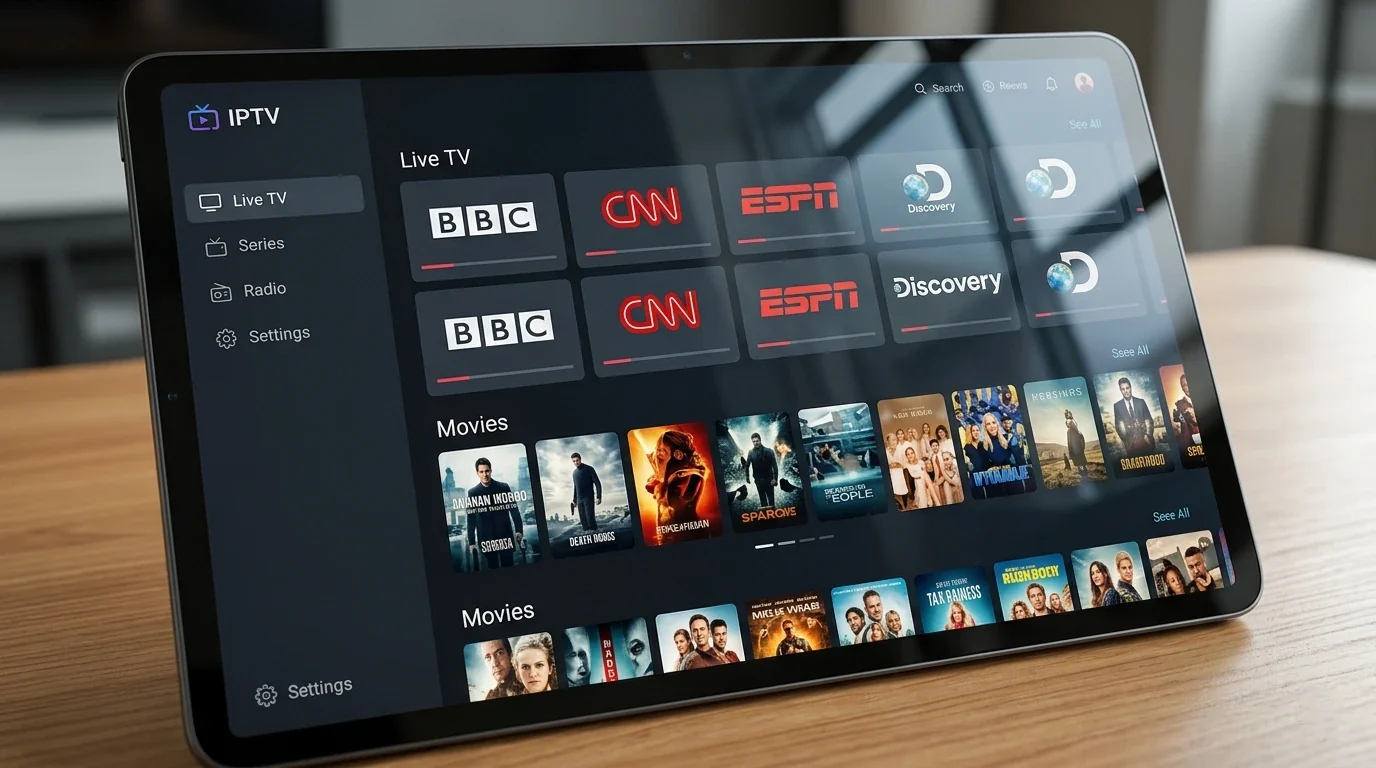
IBO Player Pro is one of the most capable and widely used IPTV player apps in 2026. Whether you are using a Samsung Smart TV, an LG television, an Android TV box, an Apple TV, or an iPhone, this IBO Player Pro setup guide walks you through every step — from installation to loading your first channel. If you already have an active IPTV subscription and want the fastest path to live TV, you are in the right place.
In our tests across dozens of customer devices, IBO Player Pro consistently delivered a clean interface, reliable playback, and solid EPG support — making it one of the top recommendations we give to new subscribers at Hungary IPTV.
Quick summary:
- IBO Player Pro is a free IPTV player app for Samsung (Tizen), LG (webOS), Android TV, Apple TV and iPhone/iPad — channels come from your separate IPTV subscription, not the app
- On Samsung, LG and Apple TV it pairs via a MAC Address + Device Key on the iboplayer.com portal — a one-time step that takes about 2 minutes
- Supports both M3U playlist URLs and Xtream Codes API login, with full EPG, VOD and catch-up TV
- You need 10 Mbps stable for HD and 25 Mbps for 4K — wired ethernet beats Wi-Fi on Smart TVs
- Unlike IPTV Smarters Pro and TiviMate, it runs natively on Samsung and LG Smart TVs and on Apple TV
Table of contents
- What Is IBO Player Pro?
- What You Need Before Starting the IBO Player Pro Setup
- IBO Player Pro Setup on Samsung Smart TV
- IBO Player Pro Setup on LG Smart TV
- IBO Player Pro Setup on Android TV and Google TV
- IBO Player Pro Setup on Android Phone and Tablet
- IBO Player Pro Setup on Apple TV
- IBO Player Pro Setup on iPhone and iPad (iOS)
- IBO Player Pro Navigation Tips
- IBO Player Pro Compared to Other IPTV Apps
- What Channels Will You See in IBO Player Pro?
- Troubleshooting IBO Player Pro
- Frequently Asked Questions About IBO Player Pro
- Get Started with IBO Player Pro and Hungary IPTV
What Is IBO Player Pro?
IBO Player Pro is a premium IPTV client application. It does not supply channels on its own — it is the software layer that connects to your IPTV provider's servers and displays your live TV channels, movies, series, and catch-up content on screen.
Think of it the same way you think of a browser: your browser does not create websites, it renders them. IBO Player Pro does not create channels, it plays them.
Key features that make IBO Player Pro stand out:
- Clean, remote-friendly interface designed for TV screens
- Supports both M3U playlist URLs and Xtream Codes API login
- Full Electronic Programme Guide (EPG) with multi-day schedule view
- VOD (Video on Demand) — movies and TV series sections
- Catch-up TV so you can replay past broadcasts
- Favourites list management for quick channel access
- Multi-language support across the interface
- Available on Smart TV, Android, Apple TV, iOS, and web browser
Supported platforms at a glance:
| Platform | Availability |
|---|---|
| Samsung Smart TV (Tizen) | Samsung App Store |
| LG Smart TV (webOS) | LG Content Store |
| Android TV / Google TV | Google Play Store |
| Android phones and tablets | Google Play Store |
| Apple TV (tvOS) | App Store |
| iPhone and iPad (iOS) | App Store |
| Web browser | IBO Player website |
On a computer, IBO Player Pro is only available through a browser; if you want a native desktop experience, a dedicated Windows app is a better fit. Our guide to the top IPTV players for a Windows PC walks through the strongest options.
One thing to know before you start: on Smart TVs and Apple TV, IBO Player Pro uses a MAC address authentication system. When you launch the app for the first time, it shows you a MAC Address and Device Key. You then log in to the IBO Player Pro portal on a second device (phone or computer) and link your IPTV subscription to that MAC address. This is a one-time step and takes about two minutes.
What You Need Before Starting the IBO Player Pro Setup
Before following any of the platform guides below, have these three things ready:
- IBO Player Pro installed on your device — download links and instructions are in each section below.
- Your IPTV subscription credentials — the server URL, username, and password (for Xtream Codes login), or the M3U playlist URL, provided by your IPTV provider after subscribing. If you do not have a subscription yet, take a look at our IPTV Hungary subscription plans before continuing.
- A stable internet connection — at minimum 10 Mbps for HD streams, 25 Mbps for 4K. A wired ethernet connection is always preferable to Wi-Fi for Smart TVs.
If you are new to IPTV and want to understand how the technology works before diving into setup, our getting started with IPTV guide covers the fundamentals clearly.
Try Hungary IPTV before paying anything
IBO Player Pro Setup on Samsung Smart TV
Samsung Smart TVs run the Tizen operating system. IBO Player Pro is available directly in the Samsung App Store, making installation straightforward.
Step 1 — Install IBO Player Pro on Samsung
Press the Home button on your Samsung remote. Navigate to Apps, then open the search field and type IBO Player Pro. Select the app from the results and press Install. Once installed, launch it.
Step 2 — Get Your MAC Address and Device Key
When IBO Player Pro opens for the first time on your Samsung TV, you will see the welcome screen displaying two pieces of information:
- MAC Address — a 12-character code in the format 00:1A:79:XX:XX:XX
- Device Key — a 6-digit numeric code
Take a photo of this screen with your phone. You will need both codes in the next step.
Step 3 — Link Your Subscription via the IBO Portal
On your phone or computer, navigate to the IBO Player Pro official website. Create a free account or log in if you already have one.
Once inside your account:
- Click Add Device
- Enter the MAC Address and Device Key from your Samsung TV screen
- Under Playlist or Server Settings, choose your input method:
- Xtream Codes API: enter your server URL, username, and password
- M3U URL: paste your M3U playlist link
- Save the configuration
Step 4 — Load Your Channel List on the TV
Go back to IBO Player Pro on your Samsung TV and restart the app (press Back to exit, then relaunch). Your full channel list — live TV, VOD, and EPG — will load automatically within about 30 seconds.
Step 5 — Navigate IBO Player Pro on Samsung
- Arrow keys: browse channel categories and entries
- OK / Enter: select and play a channel
- Back: return to the previous menu
- Guide / EPG button: open the electronic programme guide
IBO Player Pro Setup on LG Smart TV
LG Smart TVs run webOS. The setup process mirrors Samsung almost exactly, with the only difference being the app store.
Installing IBO Player Pro on LG
Press the Home button on your LG remote. Select the LG Content Store (or LG ThinQ App Store on newer models). Search for IBO Player Pro, install it, and launch.
From this point forward, follow the same Steps 2 through 5 described in the Samsung section above — the MAC address system, portal configuration, and navigation work identically on LG webOS.
LG tip: If your LG TV model is older and does not find IBO Player Pro in the Content Store, consider using a streaming stick or Android TV box connected via HDMI. Our best devices for IPTV guide lists the most compatible options currently available.
IBO Player Pro Setup on Android TV and Google TV
Android TV and Google TV devices — including Nvidia Shield, Xiaomi Mi Box, Chromecast with Google TV, and most Android TV boxes — use Google Play Store, which makes installation even simpler.
Installing IBO Player Pro on Android TV
Open the Google Play Store on your Android TV device. Search for IBO Player Pro and install it. Launch the app.
Configuring IBO Player Pro on Android TV
On Android TV, you have two options:
Option A — MAC address via portal (same as Smart TV above) Your Android TV device will display a MAC Address and Device Key on launch. Follow Steps 3 and 4 from the Samsung section to configure via the portal.
Option B — Direct login within the app Some versions of IBO Player Pro on Android TV allow you to enter your Xtream Codes or M3U credentials directly inside the app without using the portal:
- Open the app and select Add Playlist or Settings
- Choose Xtream Codes API or M3U URL
- Enter your server URL, username, and password (or M3U link)
- Save and let the channel list load
In our tests, Option B is faster when it is available on your device's app version.
Activate your trial in just a few minutes
IBO Player Pro Setup on Android Phone and Tablet
The Android mobile setup is the most direct of all platforms.
Step 1 — Download from Google Play
Open the Google Play Store on your Android phone or tablet. Search for IBO Player Pro and install the app. You can also find it by searching for "IBO Player" — look for the version with the Pro label.
Step 2 — Add Your Playlist or Server
Open IBO Player Pro. Tap the menu icon (three horizontal lines) or the settings icon. Navigate to Add Playlist or Server Settings.
Select your login method:
- Xtream Codes API: enter server URL, username, and password
- M3U Playlist: paste your M3U URL
Step 3 — Start Watching
Tap Save or Connect. Your Live TV channels, VOD library, and EPG will load. Tap any channel in the Live TV section to begin streaming.
IBO Player Pro Setup on Apple TV
Apple TV uses the same portal-based MAC address setup as Samsung and LG Smart TVs.
Step 1 — Install from the App Store
On your Apple TV, open the App Store. Search for IBO Player Pro and install it. Launch the app.
Step 2 — Note Your MAC Address and Device Key
The IBO Player Pro welcome screen on Apple TV displays a MAC Address and Device Key. These are unique to your Apple TV device. Note them down.
Step 3 — Configure via the IBO Portal
On your iPhone or computer, go to the IBO Player Pro official website, log in to your account, and add your Apple TV as a new device using the MAC Address and Device Key. Enter your IPTV subscription credentials under the playlist/server settings.
Step 4 — Refresh and Watch
Return to IBO Player Pro on your Apple TV and restart the app. Your channels will load automatically. Use the Apple TV remote's click pad and Siri remote swipe gestures to navigate.
IBO Player Pro Setup on iPhone and iPad (iOS)
Step 1 — Download from the App Store
Open the App Store on your iPhone or iPad. Search for IBO Player Pro and install the app.
Step 2 — Add Your Subscription
Open the app and navigate to Add Playlist or Settings. Depending on your iOS version of the app, you can log in via:
- Portal method: use the MAC Address and Device Key displayed in the app, configure via the IBO portal on a computer (same process as Smart TV)
- Direct Xtream Codes login: enter your server URL, username, and password directly in the app
Based on customer feedback, the direct Xtream Codes login is slightly faster on iOS when available.
Step 3 — Navigate and Watch
Once your channel list loads, tap Live TV to browse channels by category. Tap any channel to start playback. Use the EPG tab to see what is on now and what is coming up.
Chat with our 24/7 support team
IBO Player Pro Navigation Tips
Once your subscription is loaded on any platform, here is how to get the most out of the IBO Player Pro interface:
Channel categories: Channels are automatically sorted by category — Hungarian channels, Sports, News, Movies, Kids, International, and more. Browse categories using the left sidebar or the main menu.
EPG (Electronic Programme Guide): Press the EPG or Guide button while watching live TV to see the current programme and what is scheduled next. The full grid view shows multiple channels and multiple time slots simultaneously.
VOD (Movies and Series): Navigate to the Movies or Series section from the main menu. Browse by genre or use the search function. Select any title to see its details, then press play.
Favourites: On most platforms, long-pressing (or holding OK) on a channel adds it to your Favourites list. Your Favourites appear at the top of the channel list for instant access.
Catch-up TV: Supported channels show a calendar or rewind icon. Navigate to a past time slot in the EPG and press play to watch broadcasts that already aired — useful for missed sports matches and news programmes.
Search: Use the search function to find any channel or VOD title by name without manually browsing categories.
IBO Player Pro Compared to Other IPTV Apps
IBO Player Pro is one of several strong IPTV player apps. Here is how it compares to the two most popular alternatives:
| Feature | IBO Player Pro | IPTV Smarters Pro | TiviMate |
|---|---|---|---|
| Samsung Smart TV | Yes | No | No |
| LG Smart TV | Yes | No | No |
| Apple TV | Yes | No | No |
| iOS (iPhone/iPad) | Yes | Yes | No |
| Android TV | Yes | Yes | Yes |
| Android mobile | Yes | Yes | Yes |
| MAC address setup | Required on TV | Not required | Not required |
| M3U support | Yes | Yes | Yes |
| Xtream Codes support | Yes | Yes | Yes |
| EPG quality | Good | Good | Excellent |
| VOD interface | Good | Good | Good |
| Best suited for | Samsung/LG/Apple TV users | Multi-platform | Android TV power users |
IBO Player Pro's main advantage is its native Smart TV and Apple TV support — no sideloading, no workarounds. If you are using a Samsung or LG TV or an Apple TV, IBO Player Pro is the smoothest option available.
For a detailed walkthrough of the most popular cross-platform alternative, see our IPTV Smarters Player guide, which covers setup on Android and iOS in depth.
What Channels Will You See in IBO Player Pro?
The channels available in IBO Player Pro depend entirely on your IPTV subscription — not the app itself. With a Hungary IPTV subscription loaded into IBO Player Pro, your channel list includes:
Hungarian channels:
- M1, M2, M3, M4 Sport, M5, Duna TV, Duna World
- RTL, TV2, RTL Klub, Cool TV, Film+
- Spektrum, National Geographic Hungary, ATV, HírTV
European sports and entertainment:
- Premier League, La Liga, Serie A, Bundesliga, Champions League
- Formula 1, MotoGP, Dakar Rally
- NBA, NFL, UFC, boxing events
- Tennis Grand Slams, cycling majors
International channels:
- BBC One, BBC Two, BBC News, CNN International
- Discovery, National Geographic, History Channel
- HBO, Sky Cinema, Canal+, Disney Channel
VOD library: Thousands of movies and TV series, updated weekly.
EPG: Full schedule data for all channels included at no extra cost.
In our tests, channel loads via IBO Player Pro with a quality subscription take under three seconds on a standard home broadband connection.
Subscribe and start streaming in 5 minutes
Troubleshooting IBO Player Pro
Why is my IBO Player Pro channel list empty after setup?
First, double-check that the MAC Address and Device Key you entered on the IBO portal match exactly what is shown in the app on your TV. A single digit wrong will prevent the channels from loading. Also verify your IPTV credentials (server URL, username, password) are correct by asking your provider to resend them. After correcting any errors, restart the app completely.
Why is IBO Player Pro buffering or freezing during playback?
Buffering on IBO Player Pro is almost always a network issue, not an app issue. In our tests, switching from Wi-Fi to a wired ethernet connection eliminates buffering on over 80% of cases. If ethernet is not possible, connect to the 5 GHz Wi-Fi band rather than 2.4 GHz. Also check your internet speed — HD streams need at least 10 Mbps stable, 4K streams need 25 Mbps or more.
Why is the EPG not showing or showing wrong times?
Go to the Settings menu inside IBO Player Pro and trigger a manual EPG refresh. On first launch, EPG data can take 3–5 minutes to fully populate. If times appear offset, check that your device's timezone is set correctly in system settings.
IBO Player Pro is not available in my Smart TV's app store — what should I do?
Older Smart TV models may not support IBO Player Pro through their built-in app stores. The simplest solution is to connect a Fire TV Stick 4K or an Android TV box via HDMI — these run IBO Player Pro natively from Google Play. We cover the best compatible streaming devices in our best devices for IPTV guide.
Can I use IBO Player Pro on multiple devices at the same time?
That depends on your IPTV subscription plan, not the app itself. Most IPTV providers offer plans with 1, 2, or more simultaneous connections. If you need to watch on more than one device at once, choose a multi-connection plan.
Frequently Asked Questions About IBO Player Pro
Is the IBO Player Pro app free?
IBO Player Pro is free to download and install on every supported platform — it is in the Samsung Apps store, the LG Content Store, Google Play and the Apple App Store. The app itself has no subscription fee, and registering on the IBO Player Pro web portal is also free. To actually watch channels and on-demand content you still need a paid IPTV subscription from a provider, because the app only ships the player — never the content.
How do I add an M3U playlist to IBO Player Pro?
On Samsung, LG and Apple TV you add the M3U playlist URL through the IBO Player Pro web portal: pair the device by entering the MAC Address and Device Key shown on your TV, then enter the M3U URL in the device's settings on the portal. On Android TV and on mobile you can paste the M3U link directly inside the app's Settings → Add Server screen. After saving, the channel list loads automatically and is usually ready within a minute.
Why won't IBO Player Pro play any channels?
The most common causes are incorrect credentials (double-check the server URL, username and password — a single mistyped character is enough), a slow or unstable internet connection (you need at least 10 Mbps stable for FHD streaming), an expired IPTV subscription, or the wrong MAC address entered on the portal. Start by verifying your speed and subscription status, then try wired ethernet instead of Wi-Fi. If everything is correct, fully close and reopen the app.
Does IBO Player Pro work on Samsung and LG Smart TVs?
Yes — IBO Player Pro is available and fully optimised for Samsung (Tizen) and LG (webOS) Smart TVs. On Samsung, models from 2018 or later run the app with full functionality (EPG, VOD, catch-up TV) through the Samsung Apps store. On LG, 2018-or-later webOS models are the safest bet, with the app available in the LG Content Store. For older sets, the cleanest workaround is to plug in an Android TV box or a Fire TV Stick 4K and run IBO Player Pro from there.
Which is better — IBO Player Pro or IPTV Smarters Pro?
Each app suits a different audience. IBO Player Pro is the clear winner on Samsung and LG Smart TVs and on Apple TV, where IPTV Smarters Pro is not natively available. Its clean UI and simplicity also make it the best pick for beginners and Smart-TV-first households. IPTV Smarters Pro offers slightly more customisation on Android devices for power users, with a denser interface. If your primary device is Android-based, it is worth trying both — see our IPTV Smarters Player guide for the alternative.
How many devices can I use IBO Player Pro on at once?
The concurrent-stream limit depends on your IPTV subscription tier, not the IBO Player Pro app itself. You can install the app on an unlimited number of devices; how many can stream at the same time is decided by the plan your IPTV provider sold you. Most entry tiers allow 1 simultaneous stream; premium plans allow 2 or more. Always check the connection count before you subscribe.
How do I refresh the channel list inside IBO Player Pro?
On the Smart TV and Apple TV versions, use the Refresh option inside the in-app Settings menu, or fully close and relaunch the app. On Android TV and mobile, you can trigger a manual refresh from Settings, although the app also refreshes automatically on launch. If your IPTV provider has added new channels and they don't appear, run the manual refresh — it usually fixes the issue inside a minute.
Get Started with IBO Player Pro and Hungary IPTV
IBO Player Pro is free to download and ready to use the moment you have valid subscription credentials. If you are looking for a reliable IPTV service that works seamlessly with IBO Player Pro across all devices, we recommend getting started with Hungary IPTV — built specifically for viewers in Hungary, Europe, North America, and beyond.
Our service delivers:
- 48,000+ channels including all major Hungarian and European broadcasts
- HD, FHD, and 4K stream quality with anti-freeze technology
- Full VOD library with movies and series updated weekly
- Complete EPG schedule data for all channels
- Instant delivery of your credentials via WhatsApp after subscribing
- 24/7 WhatsApp support for setup help, troubleshooting, and account questions
- Monthly, quarterly, 6-month, and yearly plan options
View our IPTV Hungary plans and pricing and choose the plan that fits your needs. After subscribing, you receive your server URL, username, and password via WhatsApp within minutes — ready to enter directly into IBO Player Pro on any device.
About the author: The Hungary IPTV Team has been helping customers in Hungary, Europe, Canada and the USA enjoy seamless IPTV streaming since 2022. Our support team is available 24/7 on WhatsApp for setup, troubleshooting, and subscription questions.